I moved to #Microsoft365 (#Office365) in 2012 and immediately started focusing on learning as much as I could, to enable my clients to do more and be efficient, fully utilizing the platform for what it’s intended to deliver. As consultant and trainer, I always say “the most difficult part of training, is to train people the things you’ve already forgotten” – however it seems I have forgotten my own rule when I am surprised by how many people are still confused by all the apps and their purpose in Microsoft 365. So let’s see if I can shed some light on this topic for you?

This of course will be easier SAID than DONE. For now I’ll focus on the apps used for storage: #SharePoint, #MicrosoftTeams & #OneDrive (which also causes the greatest confusion for most).
Let’s get some terminology/definitions out the way:
- Microsoft / Office 365 – Microsoft 365 is our cloud-powered productivity platform. It’s subscription based and is the single version of the truth/ It’s Office as you know it, plus loads more apps (Teams, SharePoint, OneDrive, Power Platform, Forms etc.) You can access all your content in the web https://office.com and some apps can be installed to use locally on your pc. It’s like buying a car vs leasing a car. Years ago we bought the Office apps, and someone would go around with the disc and install the specific purchased version on employees machines, now we lease it – which means we continue paying monthly, but also get updates constantly allowing us to stay on the latest version. So, if you stop paying, you stop ‘having’. See the Small Business subscriptions here and the Enterprise options here.
- SharePoint – Organizations use Microsoft SharePoint to create websites. You can use it as a secure place to store, organize, share, and access information from any device. All you need is a web browser, such as Microsoft Edge, Internet Explorer, Chrome, or Firefox.
- Microsoft Teams – Microsoft Teams is the ultimate messaging app for your organization—a workspace for real-time collaboration and communication, meetings, file and app sharing, and even the occasional emoji! All in one place, all in the open, all accessible to everyone.
- OneDrive for Business – OneDrive is the Microsoft cloud service that connects you to all your files. It lets you store and protect your files, share them with others, and get to them from anywhere on all your devices. When you use OneDrive with an account provided by your company or school, it’s sometimes called “OneDrive for work or school.” It used to be known as “OneDrive for Business,” (This is the OneDrive you see when you log into your company’s Office.com portal.
- OneDrive Personal – Linked to your Microsoft account (not the company Office 365 one) and gives you 5GB free cloud storage (like Dropbox)
- Site Collection – A site collection is made up of one top-level site and all sites below it. It’s like a website.
Yeah, I know that’s a lot of Microsoft mumbo jumbo, but I will proceed to make more sense of this, by sharing some infographics with you.
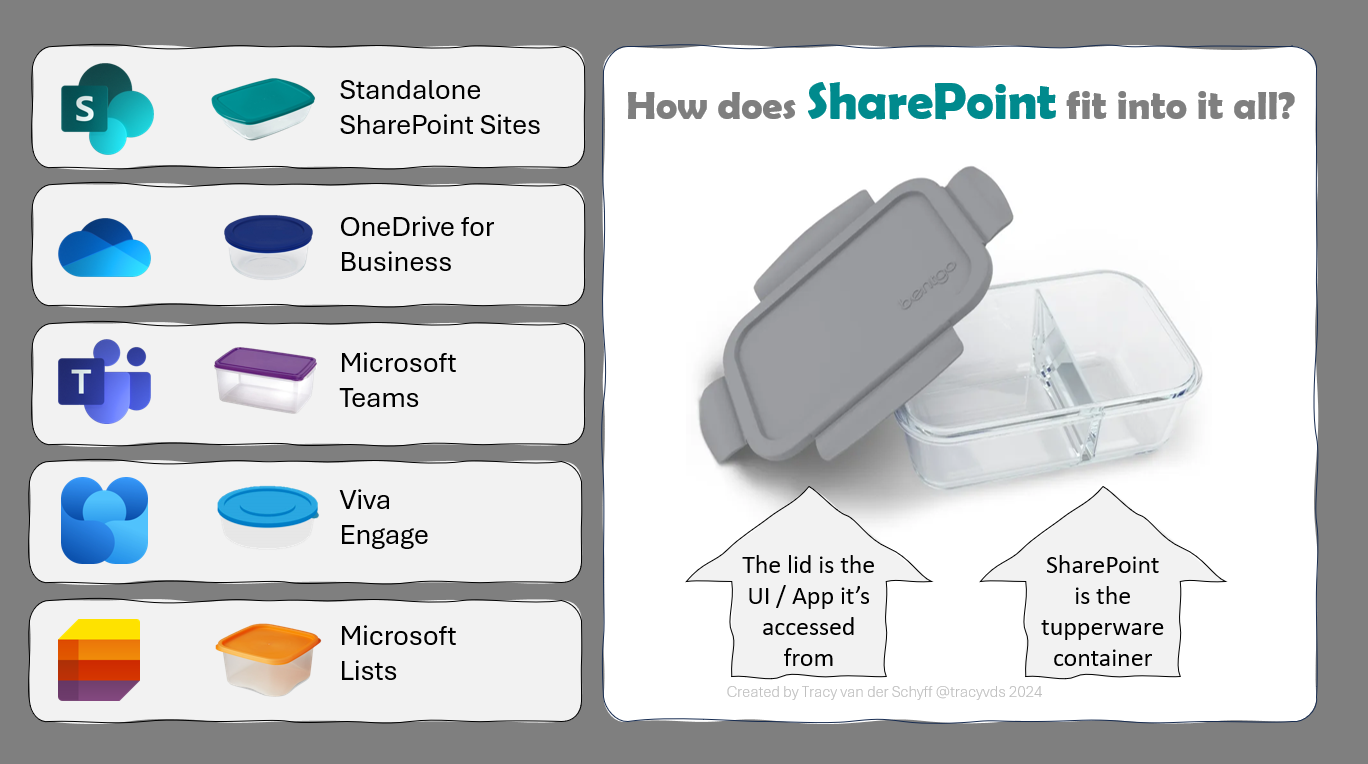
Let’s start with what #SharePoint is, and how it “fits” into #MicrosoftTeams & #OneDrive or te rest of #Microsof365 / #Office365:
It’s actually like Tupperware. #SharePoint is the container, the lid is the Application UI. Dumbfoundingly simple, but true. This is also why many of the features in apps like OneDrive, Teams, Viva Engage and Lists are actually SharePoint features. So apart from Standalone SharePoint Sites and SharePoint sites connected to your Microsoft Teams – when someone new starts in the company a “personal SharePoint site collection” is created for that person to use as their own OneDrive (for Business), Depending on where you build Microsoft Lists, they’re either stored in your OneDrive or a shared SharePoint site. And of course Engage (Yammer) also stores its content in SharePoint.
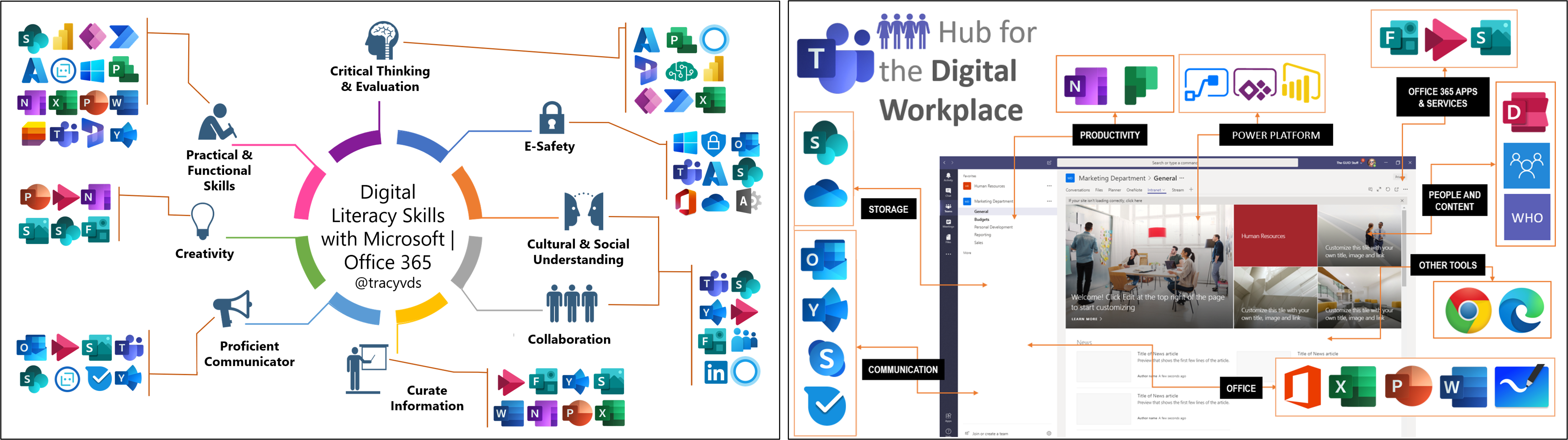
Now that we know that SharePoint forms the backbone of our favourite collaboration apps we’ll chat about Microsoft Teams, and my opinion on the purpose etc. I created the below two graphics MANY years ago and have used them so often to explain my way of thinking – that I’ve grown quite bored of them 😀, so it was time for a revamp.
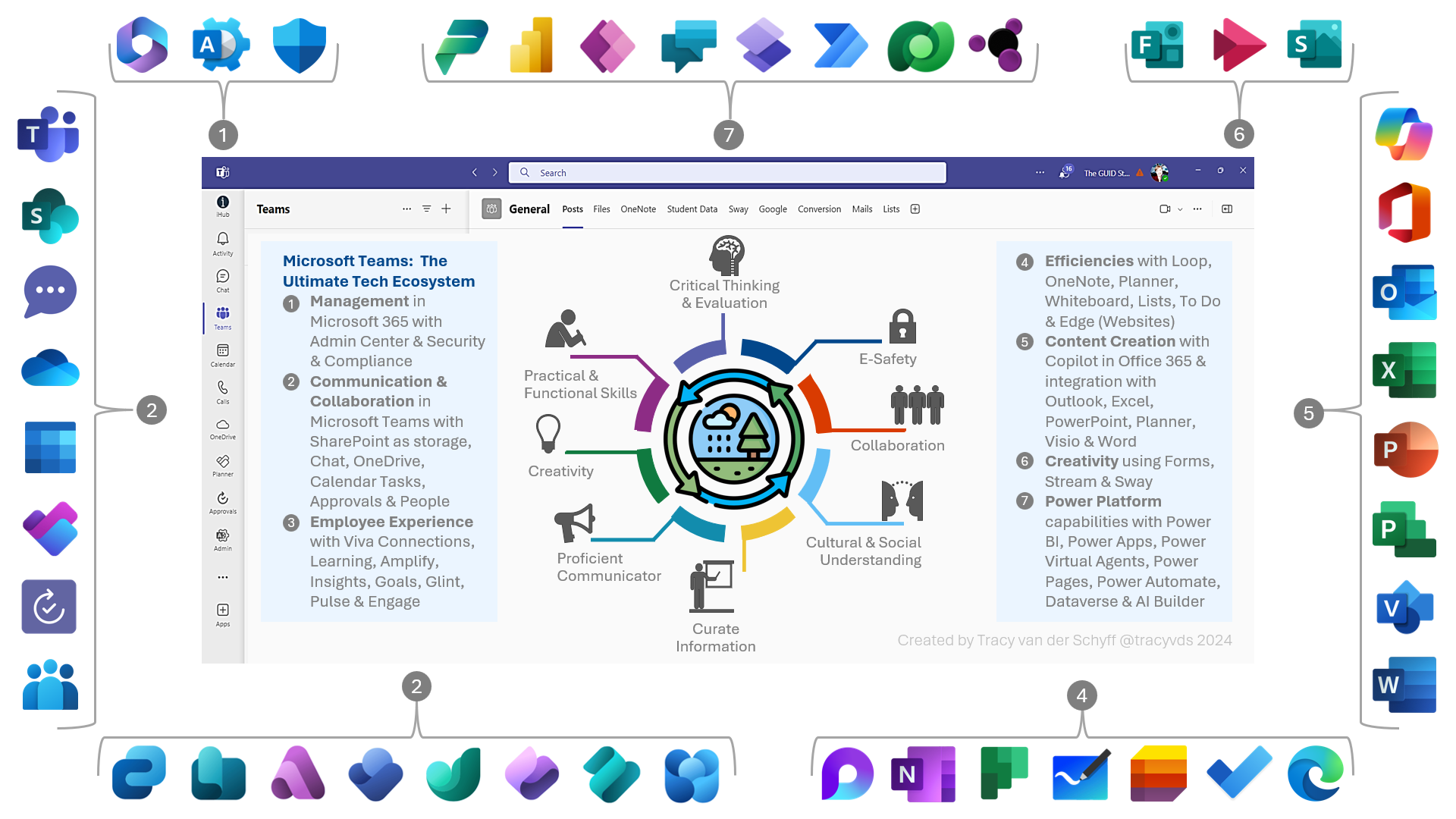
Introducing the updated Microsoft Teams – ULTIMATE ecosystem infographic. I’ve always said that Microsoft Teams is the gateway drug that leads to the consumption of all the other drugs in Microsoft / Office 365 – and I stand by it. See 10 Things you should know.
In my eyes Microsoft Teams is the stargate portal that brings everything together and gives you access to all the apps you need to work with (or most of them at least). Not only does it bring everything together (catalyst), but it also enables and supports the development of the 8 pillars of digital literacy: critical thinking and evaluation, e-safety, collaboration, cultural & social understanding, curation of information, proficient communication, creativity and practical & functional skills. Microsoft | Office 365 Supports Digital Literacy Skills.
Most people I meet (outside of my tech community) only use Microsoft Teams for chat and meetings. Oh and also, to duplicate and lose files in, as they don’t understand the “information architecture” and purpose. Of course Teams with all it’s features can be overwhelming, but “with great power comes great responsibility” so let’s take some responsibility for the “weapon of mass destruction” we’ve been issued with (and pay a lot of money for), and start using it correctly, shall we?
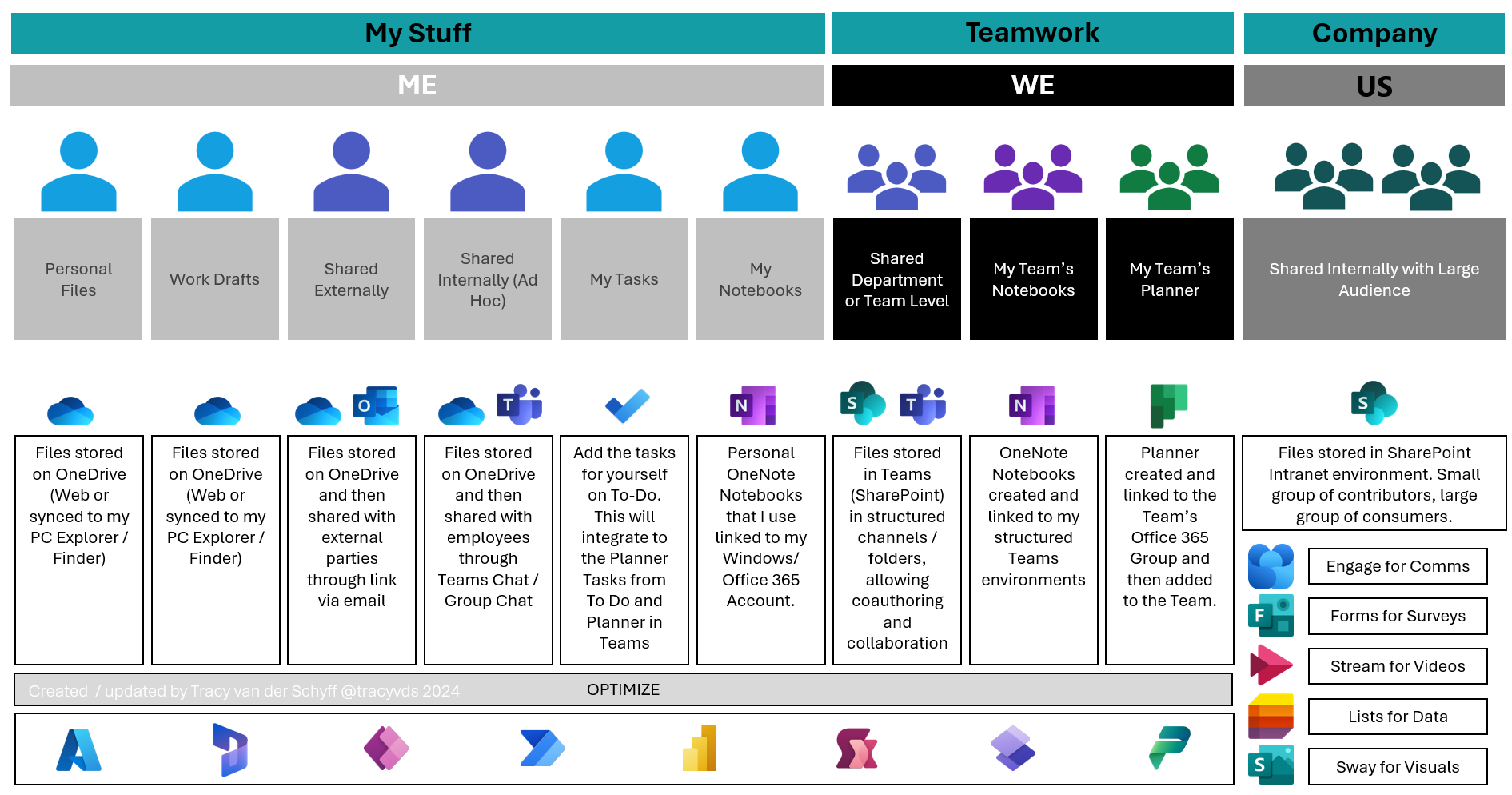
This misinformation regarding the information architecture brings me to my “Me, We & Us” illustration. Yeah, my Real Information Architect Friends will probably laugh at this, but it gets the job done. I build this into the digital strategy of the companies I work with, so employees who aren’t tech focused, understand the purpose a bit better. What should OneDrive be used for, when is it a Team and where does my company Intranet fit into all of this. Now of course, we all have different opinions and it can be applied / used differently. These are my views, and they work well for my clients, and I do hope it can help you in some way.
Once the areas above are understood (what goes where), the next question should be: “When do I actually need a Microsoft Team?” Because WOW, Oprah cannot give televisions away fast enough to beat the number of Teams people are creating unnecessarily. Crazy. And it makes me mad, cause those same people complain about how busy / noisy Teams is. Garbage in, garbage out peeps.
Below you’ll find the “decision” illustration I use for my clients.

I can continue shooting my mouth off about this for days, but let’s stop here. These infographics should help you explain and or understand things a bit better. I am working on an explanatory video walk through, because although pictures might speak a thousand words, sometimes a thousand words are just too much 😀. I’ll add the video here as soon as it’s done.
Sweet, that’s me for today. I really do hope these can help you – share the love, help others, become part of the community, believe me, we need all the help we can get.
Let me know in the comments if this helped you AND if you have other tips, analogies and illustrations that helped you in the past – please do share? Stay awesome, chat soon.
 Tracy van der Schyff
Leave a Reply