The Copilot Prompt Gallery + Help & Learning Portal provides central hubs where you can discover, customize, save, and reuse high‑quality prompts for Microsoft 365 Copilot. They help you work faster by giving you ready‑made jump‑start prompts for Word, Excel, Teams, Outlook, PowerApps, and more.
Copilot Prompt Gallery:
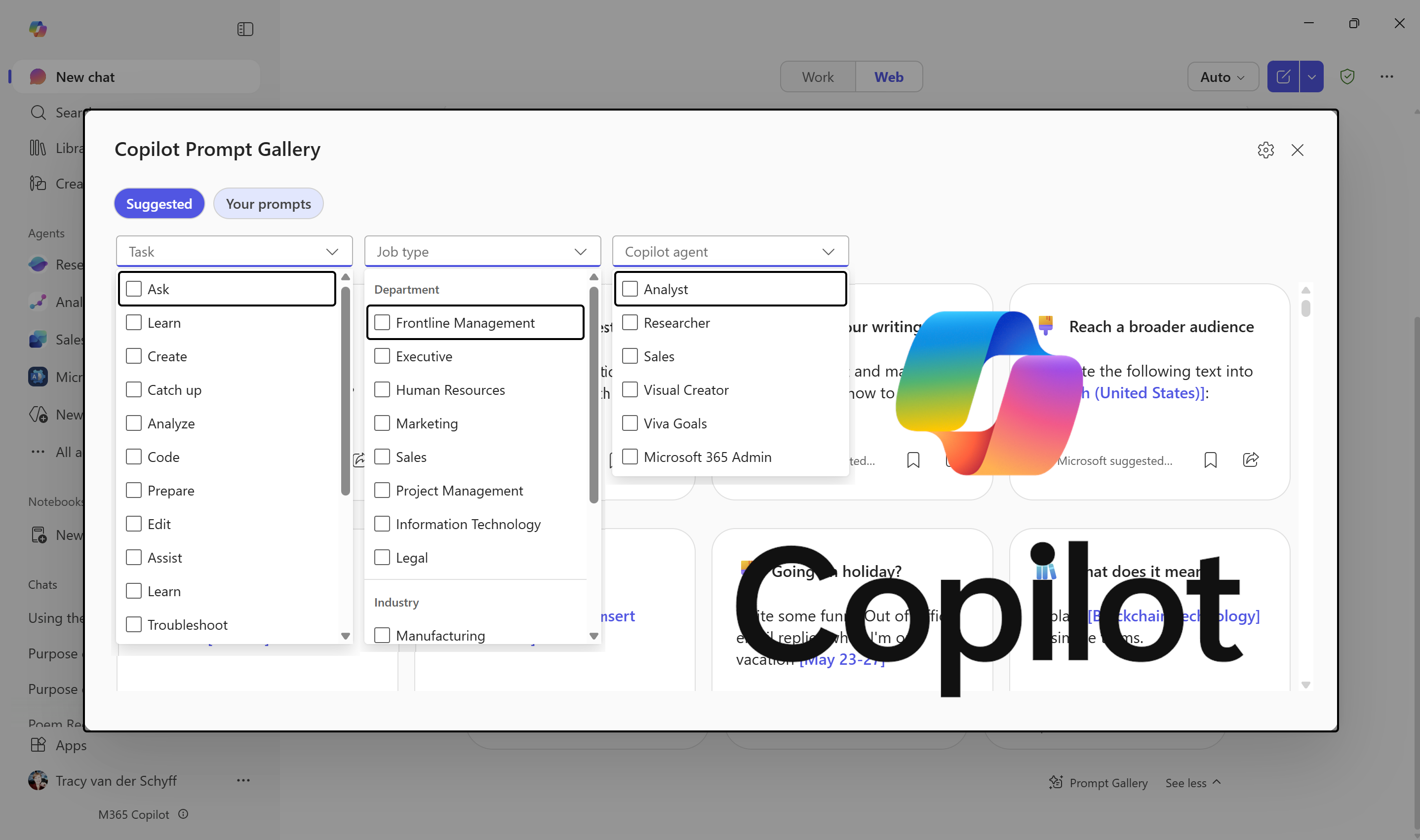
See my previous blog: Prompt Like a Pro: Exploring the Purpose of the Copilot Prompt Gallery where I covered how to access the Prompt Gallery.
In the Prompt Gallery you’ll see “Suggested” and “Your Prompts”. Under “Your Prompts” you’ll find any prompts you’ve saved. Then you’re able to filter by “Task“, “Job Type” and “Copilot Agent“.
Using a Suggested Prompt:
To get started in the Prompt Gallery, use the filters to be inspired by prompts suggested for different tasks, job types and agents. In the below example I’ll use “Collect” under Tasks.
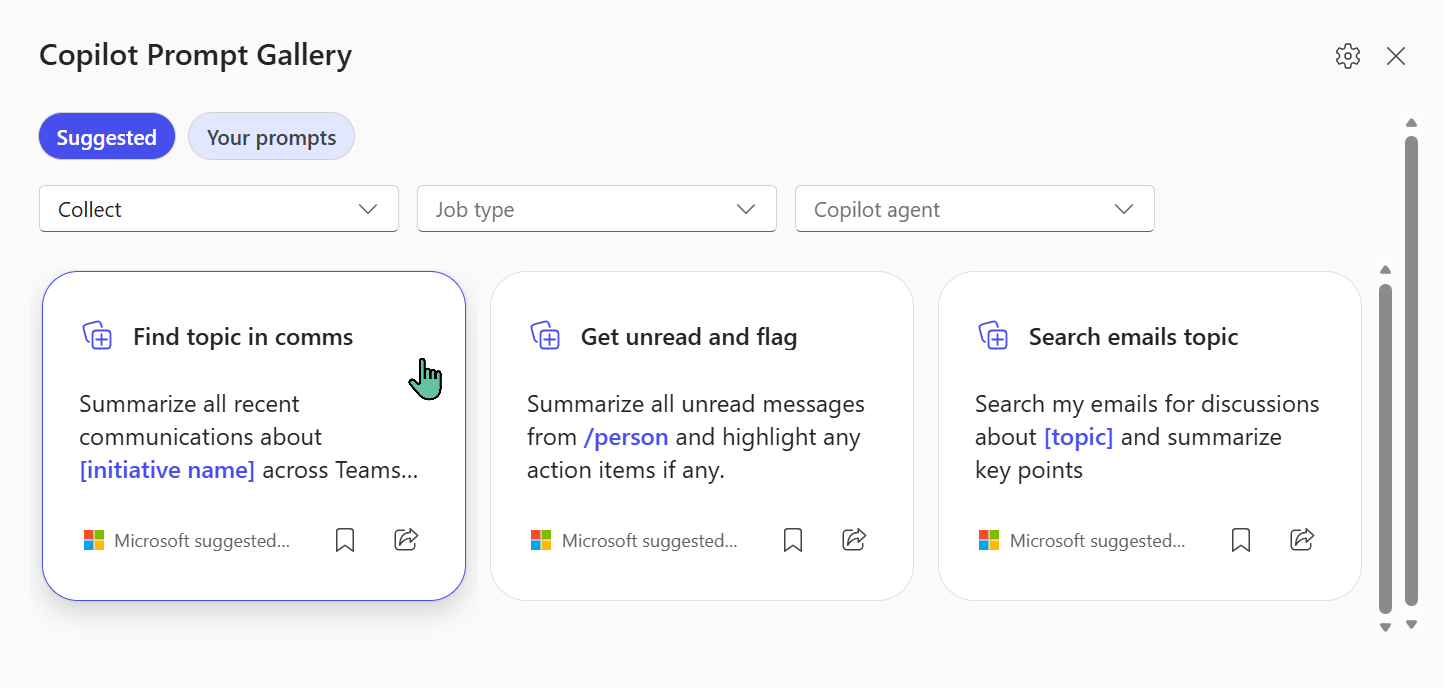
When selecting the prompt, it then opens in the Chat Window, allowing you to modify and add necessary details:
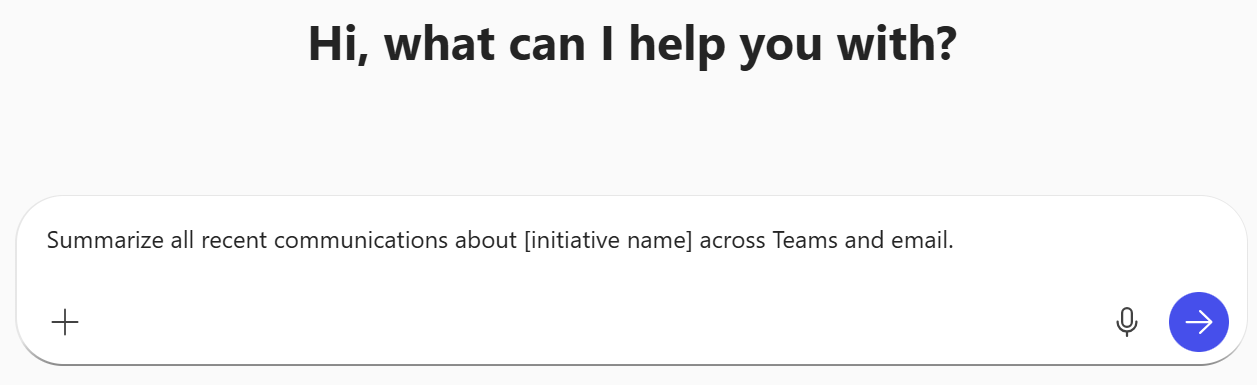
I’ve changed the [initiative name] to “Intranets”. Copilot then searched across Microsoft Teams, Outlook and any documents I’ve created and summarized the results, including links to the resources:

So, do I use Copilot because I don’t know what an Intranet is? No! I use it because I simply cannot remember where to look, who the client was, or have the time, or actually, all of the above.
Referencing documents in Prompts:
I’ve done another example using the “Catch-up” Task and uploaded the Microsoft 365 Copilot implementation framework.
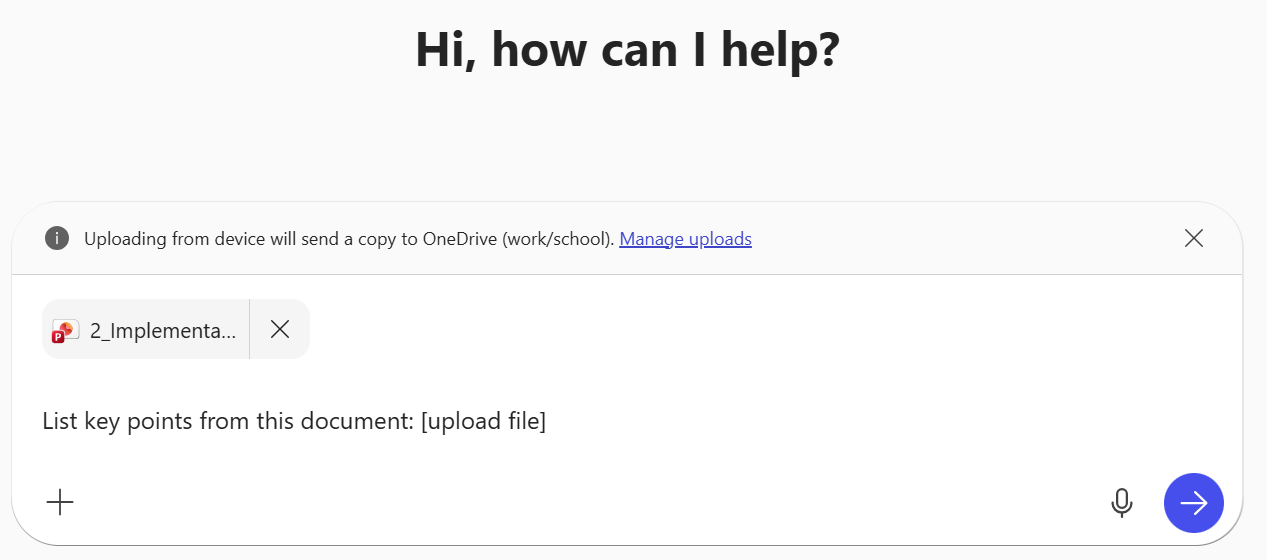
It’s a 27-page presentation and I really don’t have time to work through it all for the quick overview. It’s given me a 3–4-page summary and asked if I wanted the shortened Executive Summary.
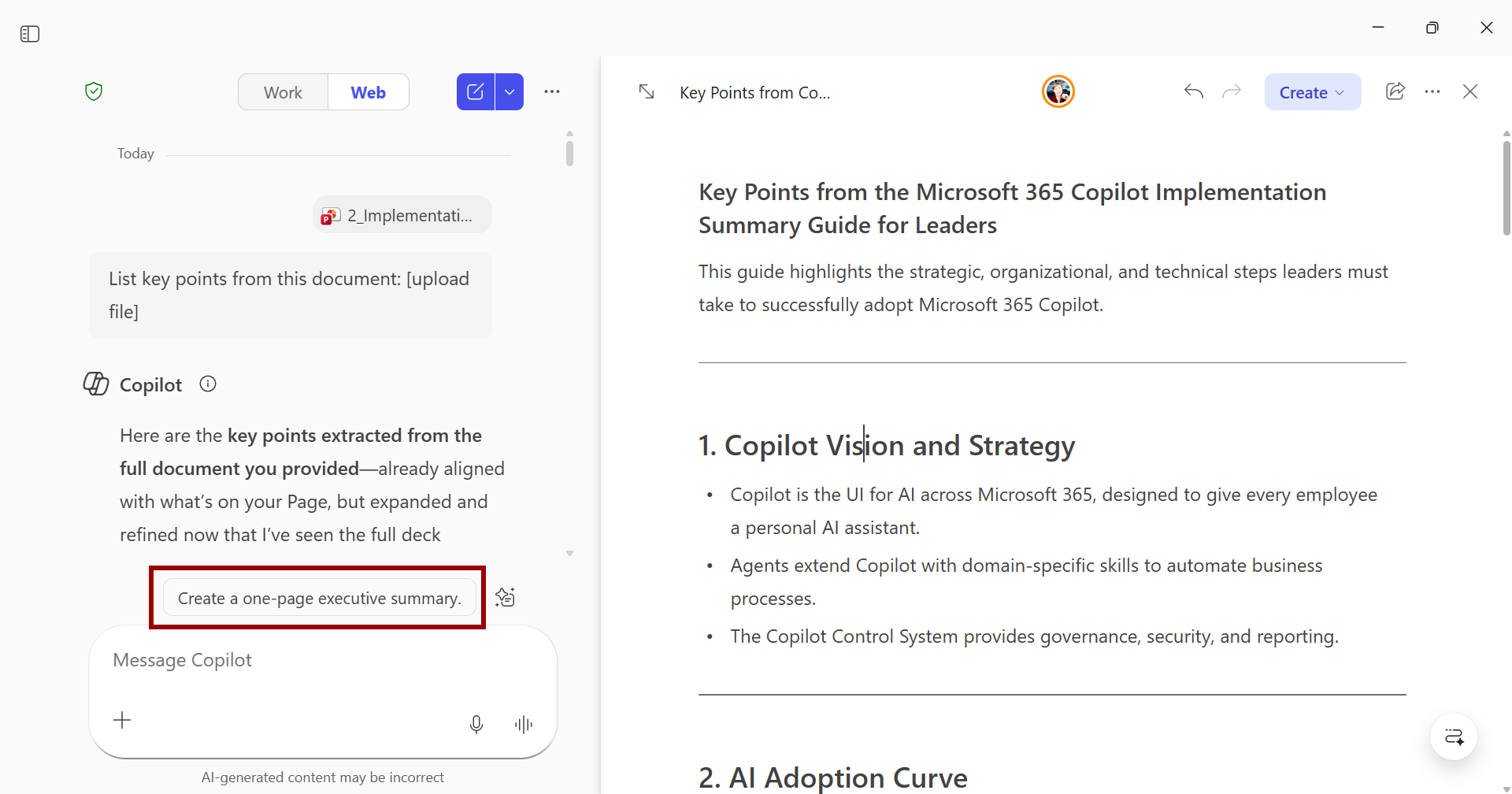
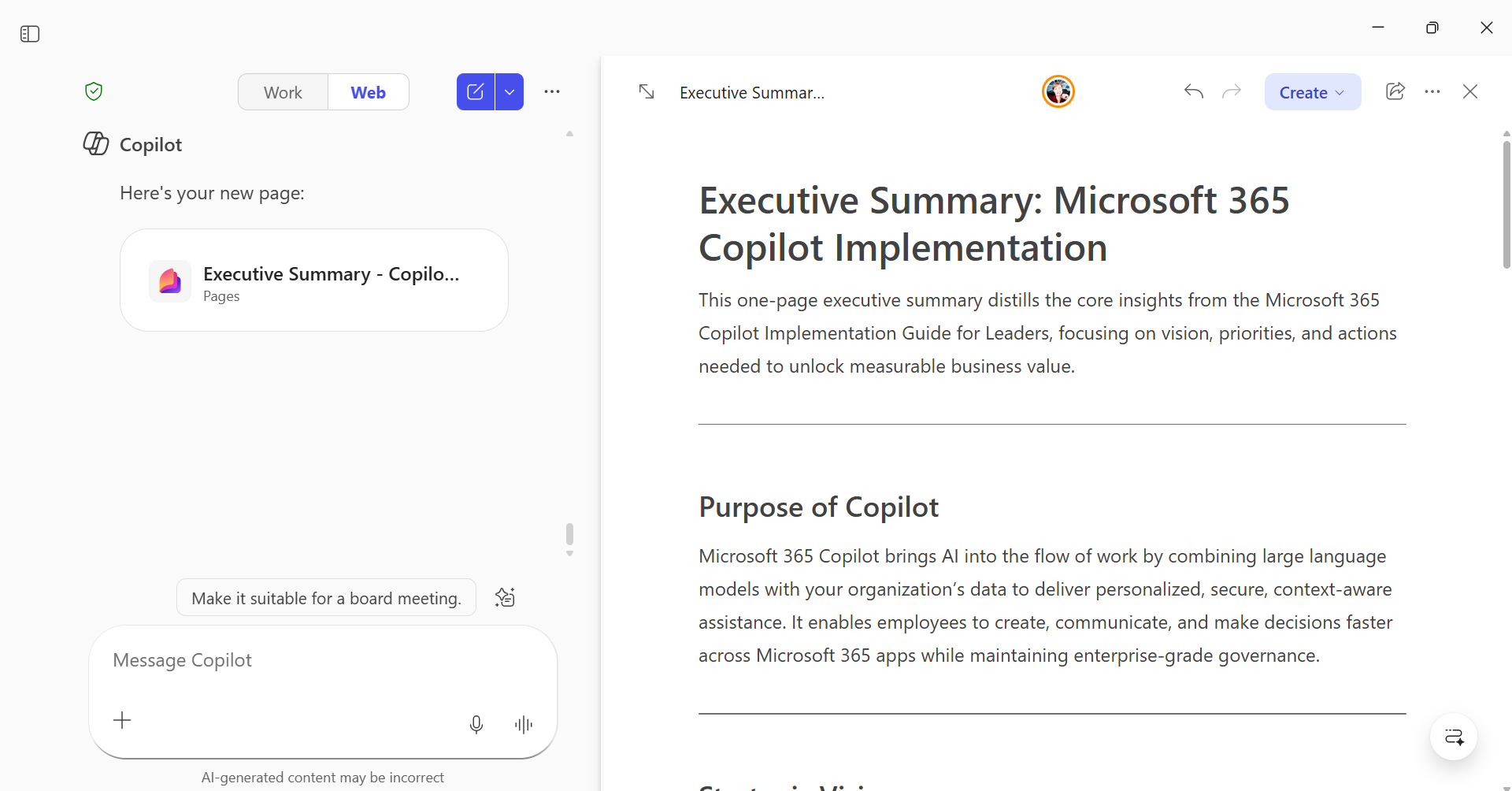
The one-page Executive Summary is exactly what I was looking for (also great for building a quick infographic) and again, option was given to “Make it suitable for a board meeting”. YES PLEASE!!
So, get started by trying out a couple of suggestions, pretty soon you’ll notice your prompts change based on the results you’re getting and by learning from what you’re seeing.
I’ve just saved myself enough time to stop working, drink some Prosecco and stare at the ocean. #2026Goals!!
In the next article we’ll explore Microsoft 365 Copilot Help & Learning Portal, after which I’ll delve into Copilot Agents and more tips on writing great prompts.
Resources:
- Copilot Prompt Gallery
- Microsoft 365 Copilot help & learning
- Accelerate your AI journey with our Copilot Success Kit
Other Copilot related blogs I’ve written:
- From Burnout to Balance: My Journey with Microsoft Copilot
- Prompt Like a Pro: Exploring the Purpose of the Copilot Prompt Gallery
“Build confidence, boost creativity, and let Copilot do the heavy lifting. Your journey from beginner to brilliant starts with one good prompt.”
Contact me:
Do you need help with your #Microsoft365 #Copilot journey? Contact me.
Please DO NOT contact me to publish blogs on your behalf, advertise on my site, endorse your product or solve a problem you have (that could have been solved by posting on an online forum). As part of the #Micosoft365 #Copilot #Community, we work really hard on content and support that we give back to you, for free – because we really do care. You are always welcome to leave (relevant) comments on my blogs / videos, and I’ll respond, as this way, others also get value from it.
Stay awesome, keep learning, help others.

 Tracy van der Schyff
Leave a Reply