If you’ve ever wished you had a digital assistant who just gets you, works across your apps, and helps you get things done faster, good news. Microsoft 365 Copilot is already doing exactly that.
Most people only scratch the surface of what Copilot can do. The magic isn’t in the big, flashy AI moments. It’s in the dozens of tiny time-savers that help you reclaim minutes throughout the day, minutes that quickly add up to hours.
Here are 20 practical, real‑life things Copilot can already do for you, no special skills or IT background needed.
Take note:
- Keep in mind that any screenshots / examples I share are based on the full Microsoft 365 Copilot license which is available as an add-on plan. I will share more information regarding licensing and feature comparisons in my next post.
- The Copilot Chat (included in your Microsoft 365 subscription) can do the following: 9–12, 13–16 (with uploads), 17–20.
- Microsoft 365 Copilot Business or Enterprise can do all of the below.
A. Email & Communication
- 1. Draft Replies for You – Turn long emails into short responses in seconds.
- 2. Summarize Long Email Threads – Get the “just tell me what matters” version instantly.
- 3. Rewrite Messages in Different Styles – Professional, friendly, shorter, clearer, whatever you need.
- 4. Create Meeting Follow-Up Messages Automatically – Summaries, next steps, tasks, all generated for you.
B. Meetings & Collaboration
- 5. Generate Meeting Notes Even if You Missed the Meeting – Recaps, decisions, actions, done automatically.
- 6. Create Action Lists from Conversations – Turn discussions into trackable tasks.
- 7. Prepare for Meetings – Ask for a quick overview of people, project history, risks.
- 8. Turn Meeting Chat into a Clean Summary – No need to scroll back through the chaos.
C. Writing & Content Creation
- 9. Draft Documents from a Simple Idea – Blogs, proposals, emails, policies, start from nothing.
- 10. Rewrite or Improve Existing Text – Fix tone, grammar, clarity, or structure.
- 11. Create Social Media Posts – Turn long content into catchy posts or a campaign.
- 12. Generate Ideas When You’re Stuck – Titles, angles, outlines, stories, instant inspiration.
D. Data & Analysis
- 13. Summarize Large Excel Files – Trends, insights, anomalies, patterns.
- 14. Explain Complex Data in Plain English – Perfect for people who aren’t Excel geeks.
- 15. Build Formulas Based on Simple Instructions – “Calculate profit margin” – formula written for you.
- 16. Create Charts Automatically – Tell Copilot what you need; get visuals instantly.
E. Research & Information
- 17. Research a Topic for You – Collect key info, compare options, provide summaries.
- 18. Extract Facts from Documents – Policies, PDFs, notes, pull out what you need.
- 19. Turn Messy Notes into a Clean Summary – Bullet points, categories, or an action plan.
- 20. Turn Web Pages into Quick Overviews – No more reading 2,000-word articles when you need 3 bullets.
Why This Matters
Most people think AI is complicated or “for technical people.” But Copilot is designed for everyday work, the kind we all do, all day, across email, documents, meetings, and spreadsheets.
Saving five minutes here and ten minutes there adds up. That’s why businesses are seeing Copilot become one of the easiest productivity wins available today.
Your Next Step: Try Just One Thing
You don’t have to master everything at once. Try one of these tasks today, summarize an email, rewrite a paragraph, or ask Copilot to create a first‑draft document. You’ll start feeling the time savings immediately.
And once you do… you’ll wonder how you ever worked without it. 😊
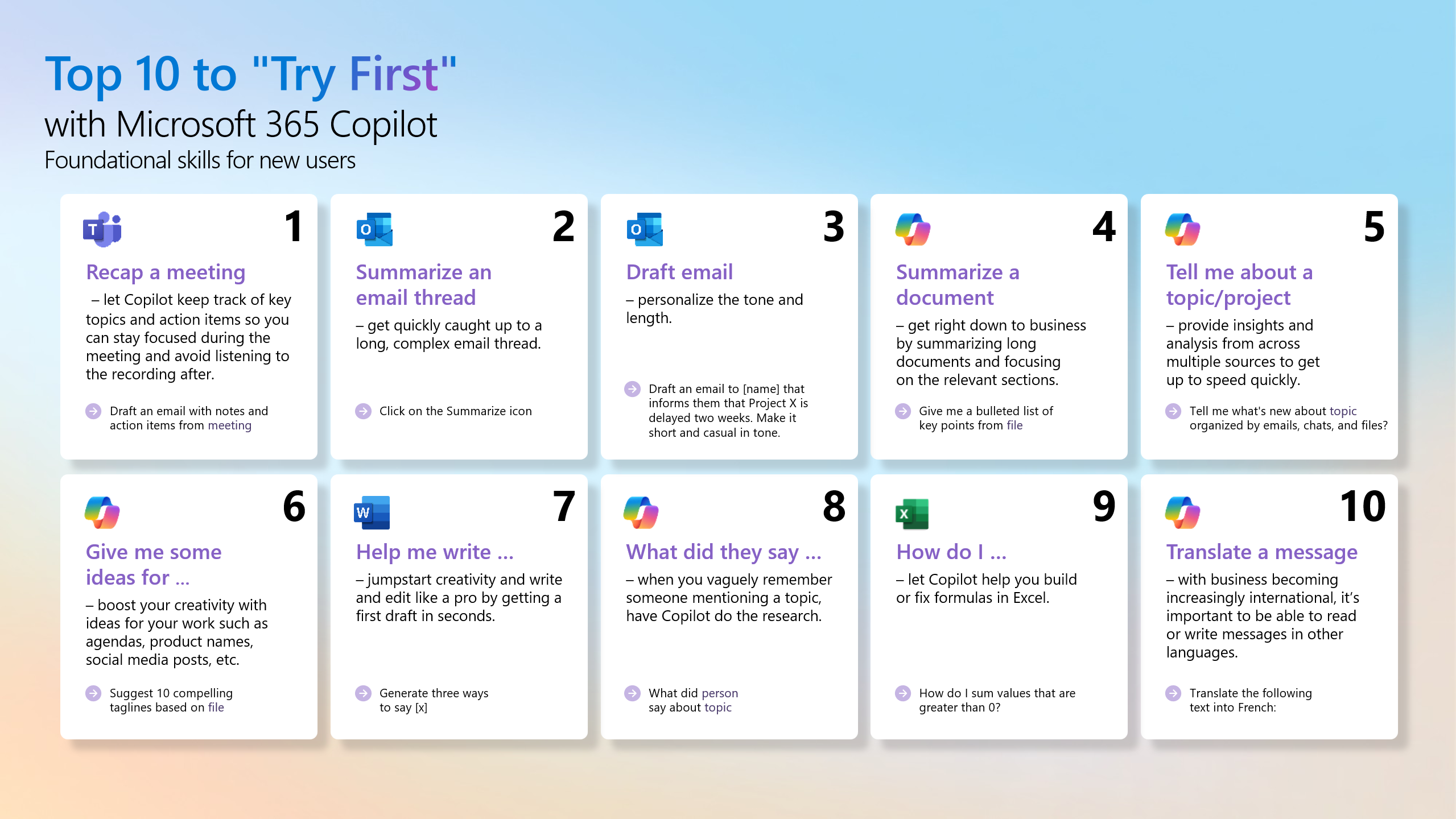
Below is a great Top 10 to “Try First” poster created by Microsoft:
In the next article we’ll explore Copilot licensing and feature comparisons.
Resources:
- Copilot Prompt Gallery
- Microsoft 365 Copilot help & learning
- Accelerate your AI journey with our Copilot Success Kit
- Microsoft 365 Copilot Hub
- Copilot Success Kit
Other Copilot related blogs I’ve written:
- From Burnout to Balance: My Journey with Microsoft Copilot
- Prompt Like a Pro: Exploring the Purpose of the Copilot Prompt Gallery
- Microsoft 365 Copilot Help & Learning Portal
- The Prompt Gallery Playbook: Level Up Your Copilot Skills
- Beyond Chat: How Copilot Agents Are Transforming Work in 2026
- Copilot: Treat it like a conversation — adjust, refine, iterate!
“Build confidence, boost creativity, and let Copilot do the heavy lifting. Your journey from beginner to brilliant starts with one good prompt.”
Contact me:
Do you need help with your #Microsoft365 #Copilot journey? Contact me.
Please DO NOT contact me to publish blogs on your behalf, advertise on my site, endorse your product or solve a problem you have (that could have been solved by posting on an online forum). As part of the #Micosoft365 #Copilot #Community, we work really hard on content and support that we give back to you, for free – because we really do care. You are always welcome to leave (relevant) comments on my blogs / videos, and I’ll respond, as this way, others also get value from it.
Stay awesome, keep learning, help others.

 Tracy van der Schyff
Leave a Reply