Most people don’t have the time (or the desire!) to become data experts. But every department, from finance to sales to HR, is flooded with spreadsheets, numbers, and reports.
That’s where Copilot Analyst comes in. It’s like having a friendly, built‑in data expert who can read your files, make sense of them, and give you the answers you need in minutes.

What Is Copilot Analyst?
Copilot Analyst is a specialised helper inside Microsoft 365 that turns your numbers and spreadsheets into clear insights, charts, and summaries, without you needing formulas or technical skills.
Microsoft explains that Analyst is designed to work “like a data scientist” and can turn raw data into easy‑to‑understand answers and visuals. It’s built right into Microsoft 365 Copilot Chat (add-on license) and is available for everyday business users.
Think of it as: A smart colleague who loves spreadsheets and explains things simply. 🤣
Why It’s Useful and how it’s Different from Regular Copilot?
Regular Copilot can help you write, summarise, and create content. But Copilot Analyst goes much deeper with numbers.
Here’s what makes it special:
- It can understand messy spreadsheets
- It can look for patterns or problems in your data
- It can create charts, summaries, and forecasts
- It explains how it got its answer, step by step
- It can even run calculations in the background automatically
Microsoft highlights that Analyst uses advanced reasoning to give high‑quality answers similar to what a human expert would produce. You don’t need to know any formulas; just ask it questions the way you’d talk to a person.
How to Use Copilot Analyst:
1. Open Microsoft 365 Copilot
Inside Copilot, you’ll see Analyst under the “Agents” section. If it’s not there, you can add it from “All agents.”
2. Give It Your Data (it’s protected by your Microsoft 365 license)
You can upload:
- Excel spreadsheets
- CSV files
- Reports
- Or even paste data straight into the chat
3. Ask a Normal, Everyday Question
No technical language needed.
Try things like:
- “Please summarise this sales report for me.”
- “Show me the main trends in this spreadsheet.”
- “Create a chart comparing these regions.”
- “Find anything unusual in this finance data.”
- “Forecast what next quarter might look like based on this information.”
4. Review and Refine the Results
Analyst will give you clear explanations, charts, or a summary.
You can then ask follow‑up questions like:
- “Explain this in simpler terms.”
- “Show me only the top 5 items.”
- “Turn that into a PowerPoint slide.”
Easy, Real‑World Examples
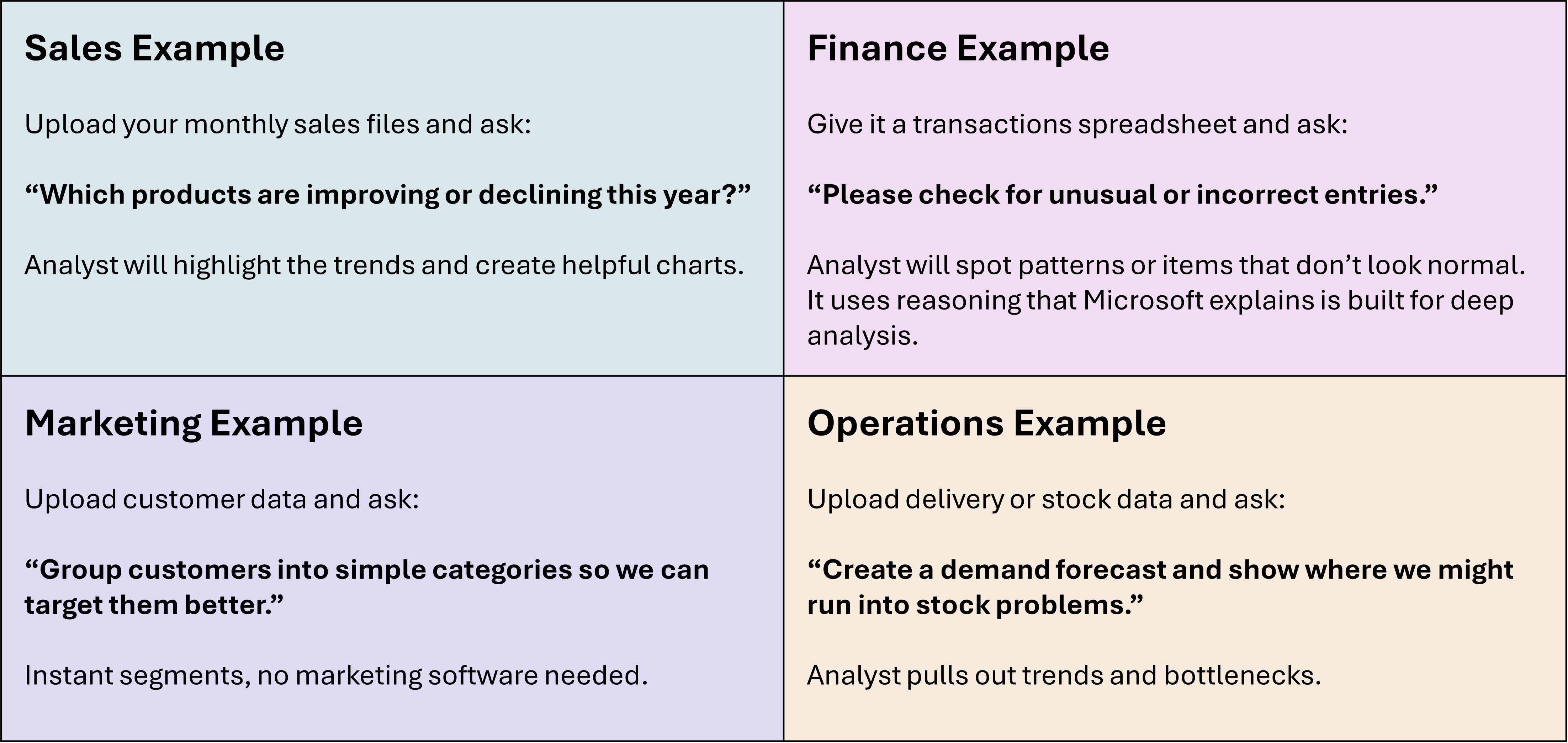
The ROI: Why Companies Love Copilot Analyst
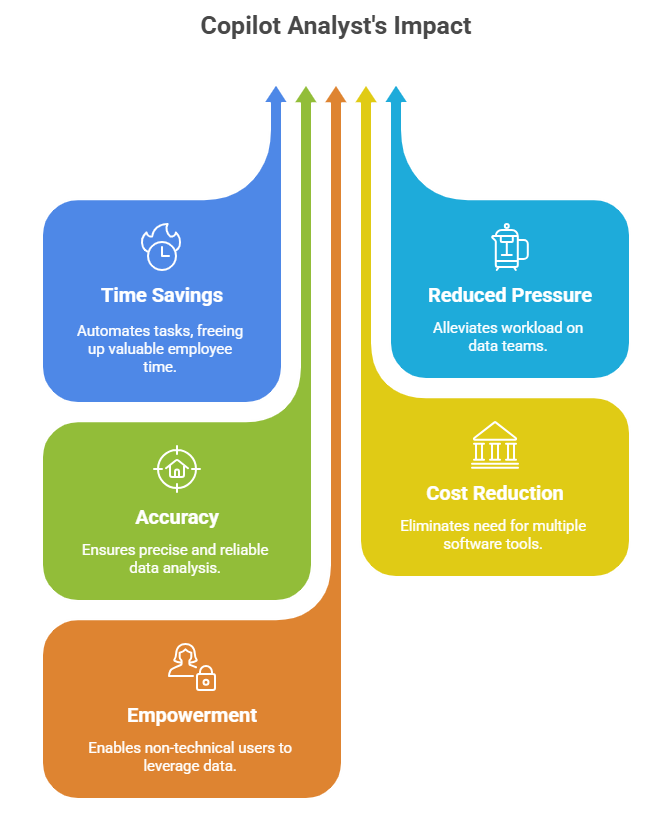
Analyst can perform expert‑level analysis in minutes, significantly reducing time and effort spent on data work.
- Saves Hours of Work Every Week: Tasks that used to take hours, cleaning up data, looking for patterns, making charts, now take minutes.
- Reduces Pressure on Data Teams: Instead of waiting for someone in analytics to help, anyone can get insights instantly.
- More Accurate and Consistent Results: Because Analyst explains its steps and can run deeper calculations, the results are more reliable. Microsoft states that the answers produced mirror human analytical thinking.
- Cuts Costs on Extra Tools: Many companies use separate tools for forecasting, analysis, visuals, or data clean‑up. Analyst puts all of that inside the Microsoft 365 tools you already use.
- Empowers Everyone (Not Just Tech‑Savvy Users): Even users who avoid Excel formulas can now confidently work with data.
Analyst Makes Data Easy for Everyone
Copilot Analyst removes the fear and frustration from working with numbers. You don’t need technical skills, coding knowledge, or complex formulas. You simply ask questions, and it turns your data into clear, simple answers.
It’s fast, accurate, and accessible, giving every employee the ability to make better decisions without waiting for help.
Copilot Analyst is powerful — but it’s only as safe as the data you work with.
Always use it responsibly: upload only data you’re allowed to use, double‑check outputs for sensitive information, and report anything unusual. Copilot doesn’t change permissions, it simply reveals what you already have access to. Your choices keep our organisation safe. See my blog Oversharing in the Age of Copilot: Your Data’s Worst Enemy which shares information about permissions.
From the next article, I’ll start looking at SharePoint Agents.
Microsoft Resources:
- Copilot Prompt Gallery
- Microsoft 365 Copilot help & learning
- Accelerate your AI journey with our Copilot Success Kit
- Microsoft 365 Copilot Hub
- Copilot Success Kit
- Flexible Copilot plans for every organization
- Restrict discovery of SharePoint sites and content
- Address oversharing in Microsoft 365 Copilot
- Oversharing Control at Enterprise Scale | Updates for Microsoft 365 Copilot in Microsoft Purview
- Explore agents pre-built for you in Microsoft Copilot Studio
- Introducing Researcher and Analyst in Microsoft 365 Copilot
Other Copilot related blogs I’ve written:
- From Burnout to Balance: My Journey with Microsoft Copilot
- Prompt Like a Pro: Exploring the Purpose of the Copilot Prompt Gallery
- Microsoft 365 Copilot Help & Learning Portal
- The Prompt Gallery Playbook: Level Up Your Copilot Skills
- Beyond Chat: How Copilot Agents Are Transforming Work in 2026
- Copilot: Treat it like a conversation — adjust, refine, iterate!
- Saving Time Daily: 20 Things Copilot Can Already Do for You
- Copilot Chat vs Business vs Enterprise vs Studio: Clear, Simple, Decoded
- Oversharing in the Age of Copilot: Your Data’s Worst Enemy
- How to Use Copilot Researcher for Faster, Better Decision-Making
“Build confidence, boost creativity, and let Copilot do the heavy lifting. Your journey from beginner to brilliant starts with one good prompt.”
Spoiler Alert!! I use Copilot to create my Blog Thumbnails and help fact check my articles / shorten / summarise paragraphs where needed. I also use Napkin.AI to create any infographics I use. Of course I can create my own images, and I ROCK at PowerPoint, but with Copilot I can do SO MUCH MORE, SO MUCH FASTER! I’ve always wanted an assistant, now I do.
Contact me:
Do you need help with your #Microsoft365 #Copilot journey? Contact me.
Please DO NOT contact me to publish blogs on your behalf, advertise on my site, endorse your product or solve a problem you have (that could have been solved by posting on an online forum). As part of the #Micosoft365 #Copilot #Community, we work really hard on content and support that we give back to you, for free – because we really do care. You are always welcome to leave (relevant) comments on my blogs / videos, and I’ll respond, as this way, others also get value from it.
Stay awesome, keep learning, help others.

 Tracy van der Schyff
Leave a Reply