Ever get stuck staring at a blank page or lost in a long report? Copilot in Word is here to help. It can draft, rewrite, summarize, and organize your ideas, so you spend less time struggling and more time getting things done.

The tips shared in this article is based on the Microsoft 365 Copilot add-on (Business or Enterprise).
I know my current Copilot blogs have a lot of text and not many videos right now. That’s because I want to share practical prompts and examples you can use straight away. Where possible, I’m adding official Microsoft videos as extra resources to help you learn visually. In the future, I’ll create some custom videos, especially when I cover creative topics like PowerPoint and SharePoint. 😊
How Does Copilot in Word Work?
If you have the Microsoft 365 Copilot add-on, Copilot is built right into Word. It works with your work account and can use info from your files, emails, Teams chats, and more, but only what you’re allowed to see. This means you get smarter, more relevant help, while keeping your company’s data safe.
Important Tip: Always use Copilot in Word with your work account. Don’t paste company info into free or consumer Copilot or any other AI tools.
How to Give Copilot Clear Instructions
Think of your prompt as a quick briefing:
- What do you want? (Draft, rewrite, summarize, extract)
- Who’s it for? (Managers, HR, all staff)
- What style or format? (Bullets, table, paragraph)
- Any special requests? (Friendly tone, plain language, keep it short)
The clearer your prompt, the better Copilot’s results!!
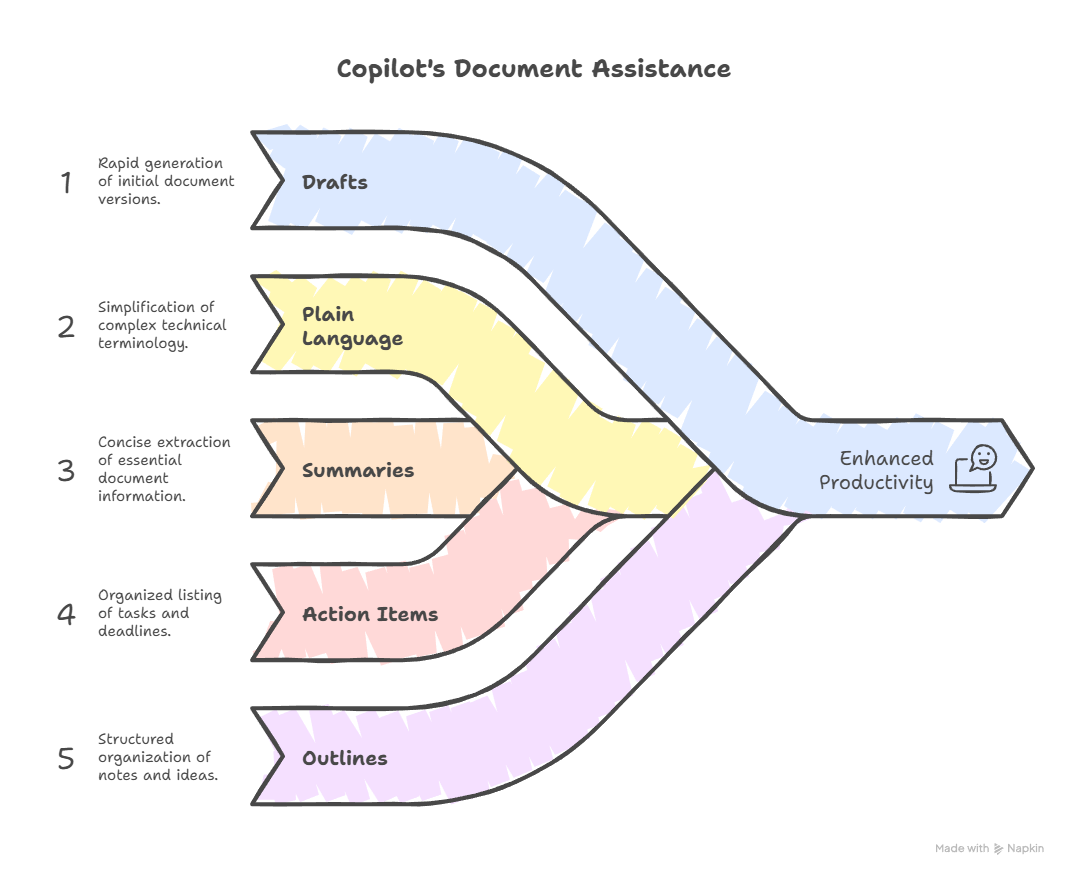
Everyday Wins
- Drafts: Get a first version of your proposal, policy, or report in minutes.
- Plain Language: Turn technical jargon into easy-to-read text.
- Summaries: Boil down long documents into key points.
- Action Items: Pull out tasks, owners, and deadlines into a neat table.
- Outlines: Organize messy notes into a clear structure.
Easy Workflow
- Ask Copilot for a draft or summary.
- Review what it gives you.
- Refine the style or format.
- Check facts and add your own insights.
- Finalize and share.
Prompt Examples
A) Drafting & Outlining
Draft a 600-word proposal for [Client] using the notes in this document. Audience: executive decision-makers in South Africa. Include an executive summary, solution overview, 3 benefits, 2 risks with solutions, and next steps. Make it confident and easy to read. Add a table of deliverables.
B) Rewrite for Plain Language
Rewrite the highlighted section for non-technical employees. Use a friendly, clear tone. Keep it under 150 words. Replace jargon with everyday words and add a practical example.
C) Summarize & Extract Action Items
Summarize this document for executives: one paragraph plus 5 key points. Scan the document and list all action items with owner and due date in a table.
D) Check for Clarity
Check this draft for confusing sentences and suggest clearer versions in a two-column table.
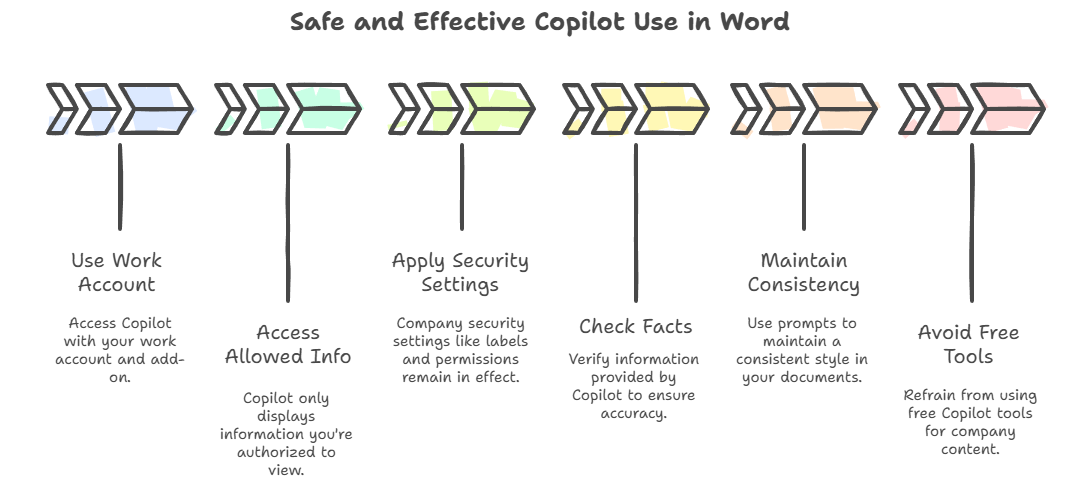
Safe and Effective Use
- Use Copilot in Word with your work account and the paid add-on.
- Copilot only shows you info you’re allowed to access.
- Company security settings (labels, permissions) still apply.
- Always check facts, Copilot helps, but you’re still the author.
- Keep your documents consistent by mentioning your preferred style in prompts.
- Don’t use free Copilot tools for company content, stick to Word.
Quick Team Exercises
- Rewrite a jargon-heavy paragraph in plain language.
- Summarize a report in one paragraph and 5 bullets.
- Extract action items into a table from meeting notes.
Tips for Teams
- Share prompt examples on your intranet.
- Nominate Copilot “champions” to help others.
- Track how Copilot is used and celebrate improvements.
Microsoft Resources:
- Copilot Prompt Gallery
- Microsoft 365 Copilot help & learning
- Accelerate your AI journey with our Copilot Success Kit
- Microsoft 365 Copilot Hub
- Copilot Success Kit
- Flexible Copilot plans for every organization
- Restrict discovery of SharePoint sites and content
- Address oversharing in Microsoft 365 Copilot
- Oversharing Control at Enterprise Scale | Updates for Microsoft 365 Copilot in Microsoft Purview
- Explore agents pre-built for you in Microsoft Copilot Studio
- Introducing Researcher and Analyst in Microsoft 365 Copilot
- Welcome to Copilot in Word
Other Copilot related blogs I’ve written:
- From Burnout to Balance: My Journey with Microsoft Copilot
- Prompt Like a Pro: Exploring the Purpose of the Copilot Prompt Gallery
- Microsoft 365 Copilot Help & Learning Portal
- The Prompt Gallery Playbook: Level Up Your Copilot Skills
- Beyond Chat: How Copilot Agents Are Transforming Work in 2026
- Copilot: Treat it like a conversation — adjust, refine, iterate!
- Saving Time Daily: 20 Things Copilot Can Already Do for You
- Copilot Chat vs Business vs Enterprise vs Studio: Clear, Simple, Decoded
- Oversharing in the Age of Copilot: Your Data’s Worst Enemy
- How to Use Copilot Researcher for Faster, Better Decision-Making
- Meet Copilot Analyst: Your New Data Scientist on Demand
- Your Copilot Crash Course: 10 Essential Blogs for Every Employee
“Build confidence, boost creativity, and let Copilot do the heavy lifting. Your journey from beginner to brilliant starts with one good prompt.”
Spoiler Alert!! I use Copilot to create my Blog Thumbnails and help fact check my articles / shorten / summarise paragraphs where needed. I also use Napkin.AI to create any infographics I use. Of course I can create my own images, and I ROCK at PowerPoint, but with Copilot I can do SO MUCH MORE, SO MUCH FASTER! I’ve always wanted an assistant, now I do. #WinningAtLife
Contact me:
Do you need help with your #Microsoft365 #Copilot journey? Contact me.
Please DO NOT contact me to publish blogs on your behalf, advertise on my site, endorse your product or solve a problem you have (that could have been solved by posting on an online forum). As part of the #Micosoft365 #Copilot #Community, we work really hard on content and support that we give back to you, for free – because we really do care. You are always welcome to leave (relevant) comments on my blogs / videos, and I’ll respond, as this way, others also get value from it.
Stay awesome, keep learning, help others.

 Tracy van der Schyff
Leave a Reply