Everyone loves the idea of a big “prompt library”, a long list of ready‑made phrases you can copy and paste into Copilot. It feels useful… until it isn’t. The truth? Prompt lists get old fast. Your work changes. Your documents change. Your goals change. And suddenly those pre‑written prompts don’t fit anymore.
Even worse: people start copying prompts that were written for a completely different situation. That’s when Copilot gives weird or unhelpful answers, not because it’s wrong, but because the prompt didn’t match the task.

But there’s a better way.
Instead of memorizing prompts, think of Copilot like someone helping you get things done. And to give good help, it needs clear instructions. A simple decision tree (a “choose‑your‑own‑path” guide) does exactly that.
A Better Approach: Use a Simple Decision Tree
A decision tree helps you build the right prompt every single time, by guiding you through four easy questions:
1. What do you want Copilot to do?
Examples: summarise, rewrite, design slides, clean up text, explain something, draft an email.
2. What tone or style do you want?
Friendly? Professional? Straightforward? Executive‑level?
Pick the vibe.
3. What should Copilot look at?
The current document? A previous email? Meeting notes? A template?
Give it the right context.
4. What format do you want back?
A list, a paragraph, a table, an email draft, or a slide outline?
When you answer these four questions, you automatically create a good prompt, one that fits your task, your content, and your style. No memorizing. No guessing. No outdated prompt lists.
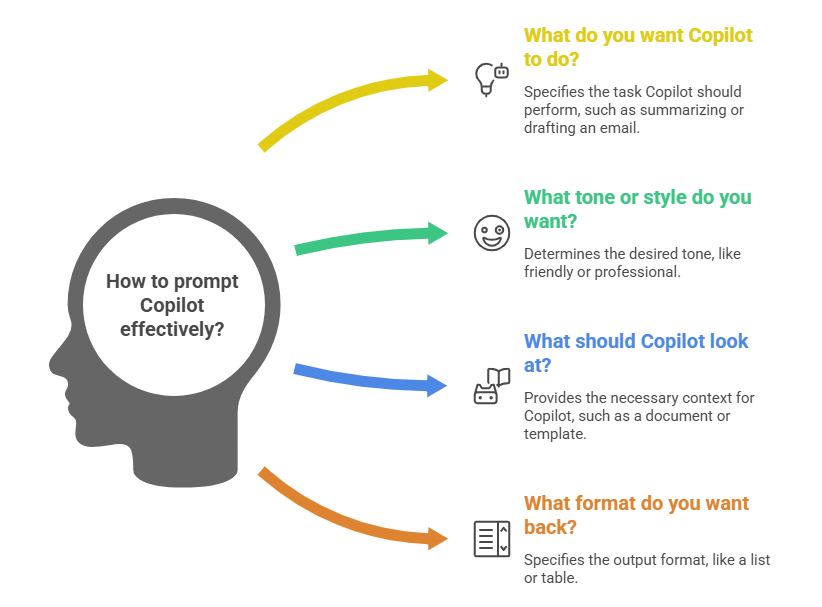
A Simple One‑Page Decision Tree You Can Use Anywhere
Step 1 – Choose your task:
✔ Summarise ✔ Rewrite ✔ Draft ✔ Explain ✔ Compare ✔ Create slides
→ This shapes the type of prompt.
Step 2 – Pick your tone:
✔ Friendly ✔ Professional ✔ Clear & simple
→ This sets the personality.
Step 3 – Add context:
✔ “Use this email/document.”
✔ “Include last week’s notes.”
✔ “Follow our company template.”
→ This helps Copilot understand the background.
Step 4 – Choose your output format:
✔ Bullets ✔ Table ✔ Paragraph ✔ Email ✔ Slide outline
→ This tells Copilot how to present the result.
Put those together, and you’ll get a prompt that always works.
Example:
“Summarise this document using a friendly tone. Include the key points from last week’s meeting notes. Give the answer in 5 bullet points with 3 recommended next steps.”
That’s it. Easy, flexible, and future‑proof.
Microsoft Resources:
- Copilot Prompt Gallery
- Microsoft 365 Copilot help & learning
- Accelerate your AI journey with our Copilot Success Kit
- Microsoft 365 Copilot Hub
- Copilot Success Kit
- Flexible Copilot plans for every organization
- Restrict discovery of SharePoint sites and content
- Address oversharing in Microsoft 365 Copilot
- Oversharing Control at Enterprise Scale | Updates for Microsoft 365 Copilot in Microsoft Purview
- Explore agents pre-built for you in Microsoft Copilot Studio
- Introducing Researcher and Analyst in Microsoft 365 Copilot
- Welcome to Copilot in Word
- Get started with Copilot in Excel
Other Copilot related blogs I’ve written:
- From Burnout to Balance: My Journey with Microsoft Copilot
- Prompt Like a Pro: Exploring the Purpose of the Copilot Prompt Gallery
- Microsoft 365 Copilot Help & Learning Portal
- The Prompt Gallery Playbook: Level Up Your Copilot Skills
- Beyond Chat: How Copilot Agents Are Transforming Work in 2026
- Copilot: Treat it like a conversation — adjust, refine, iterate!
- Saving Time Daily: 20 Things Copilot Can Already Do for You
- Copilot Chat vs Business vs Enterprise vs Studio: Clear, Simple, Decoded
- Oversharing in the Age of Copilot: Your Data’s Worst Enemy
- How to Use Copilot Researcher for Faster, Better Decision-Making
- Meet Copilot Analyst: Your New Data Scientist on Demand
- Your Copilot Crash Course: 10 Essential Blogs for Every Employee
- Write Smarter in Word with Copilot: Practical Prompts, Safer Content, Better Outcomes
- From Numbers to Insights: Copilot in Excel for Everyone
- Your New Presentation Partner: Discover Copilot for PowerPoint
- Master Your Inbox with AI: Copilot Tips Anyone Can Use
- Copilot & Digital Fluency Across Office: The Best of Excel, Word, Outlook & PowerPoint in One Guide
“Build confidence, boost creativity, and let Copilot do the heavy lifting. Your journey from beginner to brilliant starts with one good prompt.”
Spoiler Alert!! I use Copilot to create my Blog Thumbnails and help fact check my articles / shorten / summarise paragraphs where needed. I also use Napkin.AI to create any infographics I use. Of course I can create my own images, and I ROCK at PowerPoint, but with Copilot I can do SO MUCH MORE, SO MUCH FASTER! I’ve always wanted an assistant, now I do. #WinningAtLife
Contact me:
Do you need help with your #Microsoft365 #Copilot journey? Contact me.
Please DO NOT contact me to publish blogs on your behalf, advertise on my site, endorse your product or solve a problem you have (that could have been solved by posting on an online forum). As part of the #Micosoft365 #Copilot #Community, we work really hard on content and support that we give back to you, for free – because we really do care. You are always welcome to leave (relevant) comments on my blogs / videos, and I’ll respond, as this way, others also get value from it.
Stay awesome, keep learning, help others.

 Tracy van der Schyff
Leave a Reply