When last did you not work through lunch — 2014? Honestly, between the never‑ending email spirals, back‑to‑back meetings, and that one Excel file that silently judges your life choices, lunch breaks have basically become folklore. Unicorns. Bigfoot. But hey, there’s hope! Copilot is here to help you reclaim those carefree midday moments, you know, when “lunch” meant actual food, not caffeine and mild panic. Today we’re taking your lunch hour back, one smart prompt at a time. Because it’s 2026, and your wellbeing isn’t a luxury anymore… it’s a non‑negotiable.

The art of the possible, it’s a phrase we throw around often, but when it comes to AI and Copilot, it really hits home. For many non‑technical users, this whole space still feels shiny and new, almost intimidating. That’s why seeing simple, real‑world examples matters so much. They remind you of what is possible, including things you didn’t even know Copilot could do (or never thought to try!). Below you’ll find 10 quick, practical examples you can test out today. No jargon, no overwhelm, just small, powerful wins that show how AI can genuinely make your workday easier.
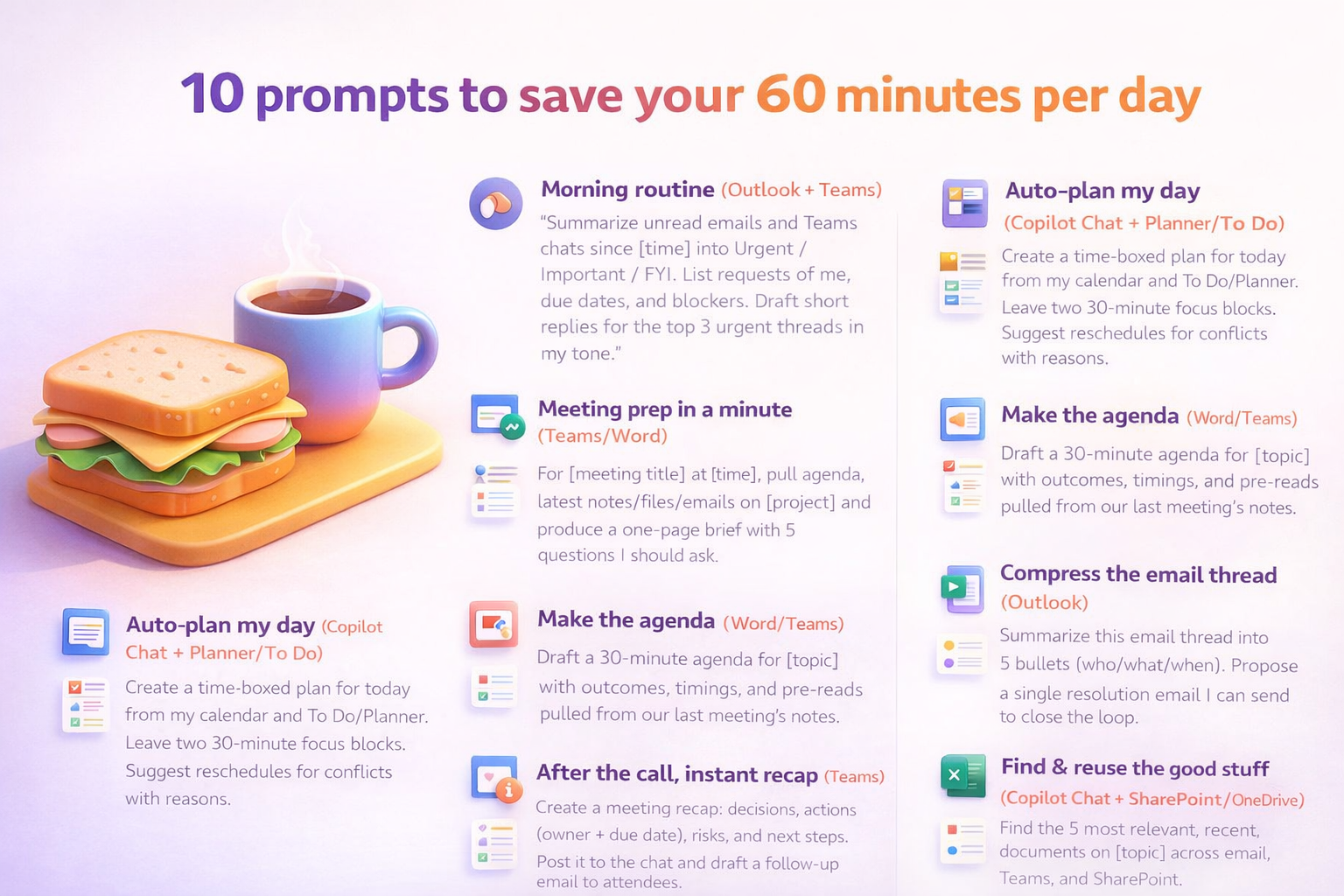
10 prompts to save your 60 minutes per day
Morning routine (Outlook + Teams)
“Summarize my unread emails and Teams chats since [time] into Urgent / Important / FYI. List requests of me, due dates, and blockers. Draft short replies for the top 3 urgent threads in my tone.”
Auto‑plan my day (Copilot Chat + Planner/To Do)
“Create a time‑boxed plan for today from my calendar and To Do/Planner. Leave two 30‑minute focus blocks. Suggest reschedules for conflicts with reasons.”
Meeting prep in a minute (Teams/Word)
“For [meeting title] at [time], pull agenda, latest notes/files/emails on [project] and produce a one‑page brief with 5 questions I should ask.”
Make the agenda (Word/Teams)
“Draft a 30‑minute agenda for [topic] with outcomes, timings, and pre‑reads pulled from our last meeting’s notes.”
After the call, instant recap (Teams)
“Create a meeting recap: decisions, actions (owner + due date), risks, and next steps. Post it to the chat and draft a follow‑up email to attendees.”
Compress the email thread (Outlook)
“Summarize this email thread into 5 bullets (who/what/when). Propose a single resolution email I can send to close the loop.”
First draft from sources (Word)
“Write a [proposal/brief/policy] using [these files/notes] and [this outline]. Include an executive summary, bullets, and a call‑to‑action.”
Word to slides in seconds (PowerPoint)
“Generate a 10‑slide deck from this Word draft. Use a clean layout, one key message per slide, and end with decisions & asks.”
Data to decisions (Excel)
“Analyze this table and list 3 anomalies, 3 trends, and 2 recommended actions. Create a chart for each trend.”
Find & reuse the good stuff (Copilot Chat + SharePoint/OneDrive)
“Find the 5 most relevant, recent documents on [topic] across email, Teams, and SharePoint. Return links with a one‑line purpose and owner.”
I’ve put together a quick reference that you can download, click to open the graphic > right click and save:
Microsoft Resources:
- Copilot Prompt Gallery
- Microsoft 365 Copilot help & learning
- Accelerate your AI journey with our Copilot Success Kit
- Microsoft 365 Copilot Hub
- Copilot Success Kit
- Flexible Copilot plans for every organization
- Restrict discovery of SharePoint sites and content
- Address oversharing in Microsoft 365 Copilot
- Oversharing Control at Enterprise Scale | Updates for Microsoft 365 Copilot in Microsoft Purview
- Explore agents pre-built for you in Microsoft Copilot Studio
- Introducing Researcher and Analyst in Microsoft 365 Copilot
- Welcome to Copilot in Word
- Get started with Copilot in Excel
Other Copilot related blogs I’ve written:
- From Burnout to Balance: My Journey with Microsoft Copilot
- Prompt Like a Pro: Exploring the Purpose of the Copilot Prompt Gallery
- Microsoft 365 Copilot Help & Learning Portal
- The Prompt Gallery Playbook: Level Up Your Copilot Skills
- Beyond Chat: How Copilot Agents Are Transforming Work in 2026
- Copilot: Treat it like a conversation — adjust, refine, iterate!
- Saving Time Daily: 20 Things Copilot Can Already Do for You
- Copilot Chat vs Business vs Enterprise vs Studio: Clear, Simple, Decoded
- Oversharing in the Age of Copilot: Your Data’s Worst Enemy
- How to Use Copilot Researcher for Faster, Better Decision-Making
- Meet Copilot Analyst: Your New Data Scientist on Demand
- Your Copilot Crash Course: 10 Essential Blogs for Every Employee
- Write Smarter in Word with Copilot: Practical Prompts, Safer Content, Better Outcomes
- From Numbers to Insights: Copilot in Excel for Everyone
- Your New Presentation Partner: Discover Copilot for PowerPoint
- Master Your Inbox with AI: Copilot Tips Anyone Can Use
- Copilot & Digital Fluency Across Office: The Best of Excel, Word, Outlook & PowerPoint in One Guide
- The ‘Prompt Library’ Anti‑Pattern: Why You Should Build Decision Trees Instead
“Build confidence, boost creativity, and let Copilot do the heavy lifting. Your journey from beginner to brilliant starts with one good prompt.”
Spoiler Alert!! I use Copilot to create my Blog Thumbnails and help fact check my articles / shorten / summarise paragraphs where needed. I also use Napkin.AI to create any infographics I use. Of course I can create my own images, and I ROCK at PowerPoint, but with Copilot I can do SO MUCH MORE, SO MUCH FASTER! I’ve always wanted an assistant, now I do. #WinningAtLife
Contact me:
Do you need help with your #Microsoft365 #Copilot journey? Contact me.
Please DO NOT contact me to publish blogs on your behalf, advertise on my site, endorse your product or solve a problem you have (that could have been solved by posting on an online forum). As part of the #Micosoft365 #Copilot #Community, we work really hard on content and support that we give back to you, for free – because we really do care. You are always welcome to leave (relevant) comments on my blogs / videos, and I’ll respond, as this way, others also get value from it.
Stay awesome, keep learning, help others.

 Tracy van der Schyff
Leave a Reply