When people think about project management, they often picture complex tools, rigid templates, and admin overhead that few people enjoy. In reality, most projects succeed or fail based on communication, shared understanding, and follow‑through, and that’s exactly where Microsoft Teams excels.
When used intentionally, Teams becomes a single, structured space for conversations, documents, meetings, tasks, and decisions, instead of information being scattered across inboxes and personal drives.

Here’s how I use Microsoft Teams for project management — and why it works.
Start With a Clear, Purpose‑Driven Team
Each project should have:
- One dedicated Team
- A clearly defined channel structure
- Meetings scheduled inside the relevant channels
- Tasks, notes, and brainstorming linked directly to the project
The aim is simple: Anyone joining the project should immediately understand how the work is organised and where to go for what. Also note that you can use this team as a template to build future project Teams. I always create each project as a separate team to be able to archive the whole team at end of project.
When I communicate in Project Teams, I create tags for specific audiences in the team, to @mention the tag with relevant people assigned to that tag. This way you don’t have to @mention the whole team every time.
Why I Number My Channels
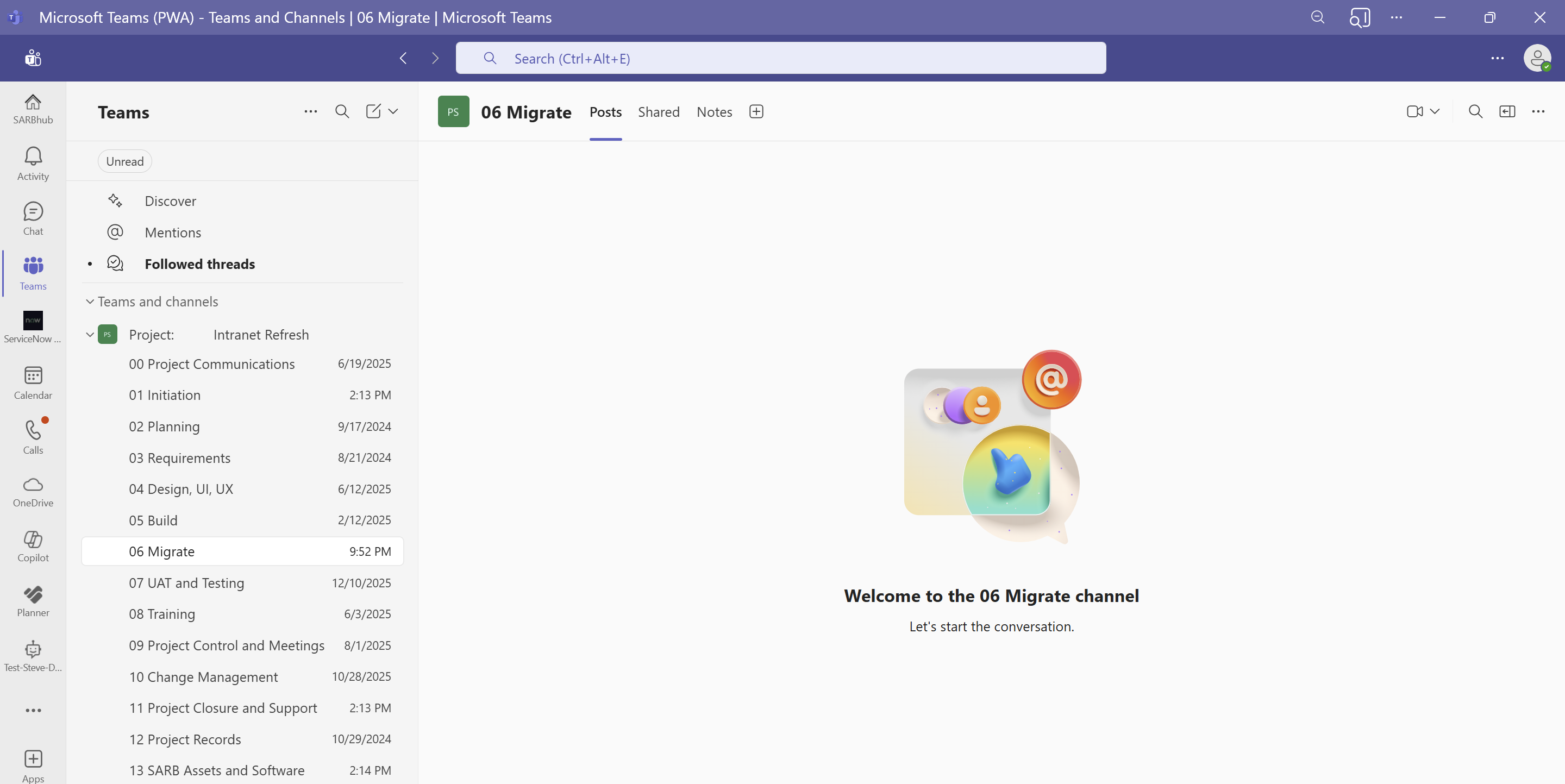
By default, Teams sort channels alphabetically, which rarely reflects how a project actually flows. To avoid chaos, I use numbers at the start of channel names to enforce a logical order. Always start with 00 and 01 so that 1 and 10 does not sort after each other. This ensures consistency and makes navigation intuitive, especially for new team members.
Example Channel Structure:
General – I always create this channel – even though Microsoft now allows us to rename this. The General Channel is the ONLY channel where you can navigate back to the full folder structure in the “Shared” (Files) Tab. This will then by default sort to be first in the list.
- General
- 00 Project Communications
- 01 Initiation
- 02 Planning
- 03 Requirements
- 04 Design, UI, UX
- 05 Build
- 06 Migrate
- 07 UAT and Testing
- 08 Training
- 09 Project Control and Meetings
- 10 Change Management
- 11 Project Closure and Support
- 12 Project Records
- 13 Licensing and Software
- 99 Archive
Why this works:
- Channels follow the natural lifecycle of a project
- Important channels stay at the top
- People instinctively know where content belongs
Alphabetical order serves the system.
Logical order serves the team.
Additional Channels
Additional channels can be introduced where there is a clear business need. While the use of Private and Shared channels should be carefully managed, project teams are one scenario where they can add real value when used appropriately.
- Private Channels
Suitable for sensitive information, such as project financials or accounting data, that should only be accessible to a limited subset of the project team. - Shared Channels
Useful for collaborating with internal or external business users who need to contribute content (for example, uploading requirements or supporting documentation) without being added to the full project team. - Shared Channels for Steerco
A shared channel can also be created specifically for Steerco engagement, providing a single location to store reports, updates, and related discussions.
That said, to keep the Team structure as simple as possible, these use cases can also be managed within standard (“open”) channels by using folders with tailored permissions. Once a folder is shared, users can:
- Add a shortcut to the folder in OneDrive
- Pin the folder as a favourite in the OneDrive app within Teams
This approach preserves a clean Team structure while still enabling secure, targeted access where needed. Keep in mind that the Team will create a SharePoint Site Collection and EVERY Private or Shared Channel ALSO creates an additional Site Collection. So, these should be an exception, not the rule.
Channel Purpose Is Everything
Each channel should have one clear purpose — not “a bit of everything”. This avoids endless searching and duplicated conversations.
- General – Post the Welcome to the Project team Announcement here, that explains the channels and shares resources and best practices.
- 00 Project Communications – CC this channel on all project comms to allow for transparency, audits and keeping everyone in the loop instead of always cc’ing the whole project team on emails as well.
- 01 Initiation
- 02 Planning
- 03 Requirements
- 04 Design, UI, UX
- 05 Build
- 06 Migrate
- 07 UAT and Testing
- 08 Training
- 09 Project Control and Meetings – Book all meetings in this channel to keep Attendance, Recordings and Meeting Recaps in the Team in SharePoint and not in a member’s private OneDrive. This channel will also have a Microsoft List used for the Project Risk and Issue Register.
- 10 Change Management
- 11 Project Closure and Support
- 12 Project Records – Store all reporting here.
- 13 Licensing and Software
- 99 Archive – Documents and folders can be moved to this channel to archive and reduce the “noise” in the team.
Use the Copilot Channel Agents
Copilot Channel Agents help cut through the everyday noise that builds up in busy project channels. Instead of scrolling through long conversations, team members can use agents to quickly find relevant information, summarise discussions, and get up to speed fast.
Agents can highlight key decisions, surface outstanding actions, and help summarise tasks and themes discussed over time, making it easier to stay aligned without adding more meetings or admin. When channels are structured well and conversations happen in the right places, Copilot becomes a powerful assistant that helps teams focus on progress rather than searching for information.
Use Planner for Task Management
Every project needs visibility of who is doing what by when.
By adding Planner to the Team:
- Tasks are visible to the entire project team
- Work is linked directly to the project context
- Conversations about tasks stay close to the work
Planner doesn’t try to replace heavy project tools — it provides just enough structure to keep momentum and accountability without friction. I always create the buckets in my Planner to represent the Channels in my Team and then use the Labels on the tasks to further categories specific teams or products.
Keep Project Notes in OneNote
Meeting notes, workshop outputs, planning details and running notes quickly become fragmented if not managed properly.
By adding OneNote to the Team:
- Notes live with the project, not on someone’s laptop
- Everyone works from the same reference point
- There’s a single source of truth for discussions and decisions
- You can also copy your AI Meeting Summaries into a OneNote Section on the Meetings Channel, with a page for each date.
This becomes invaluable for onboarding new team members or revisiting historical context later.
Use Whiteboard for Brainstorming and Planning
Projects aren’t only about execution — they’re about thinking, designing, and aligning.
With Microsoft Whiteboard integrated into Teams, you can:
- Brainstorm ideas visually
- Map processes and requirements
- Run interactive workshops in‑meeting or asynchronously
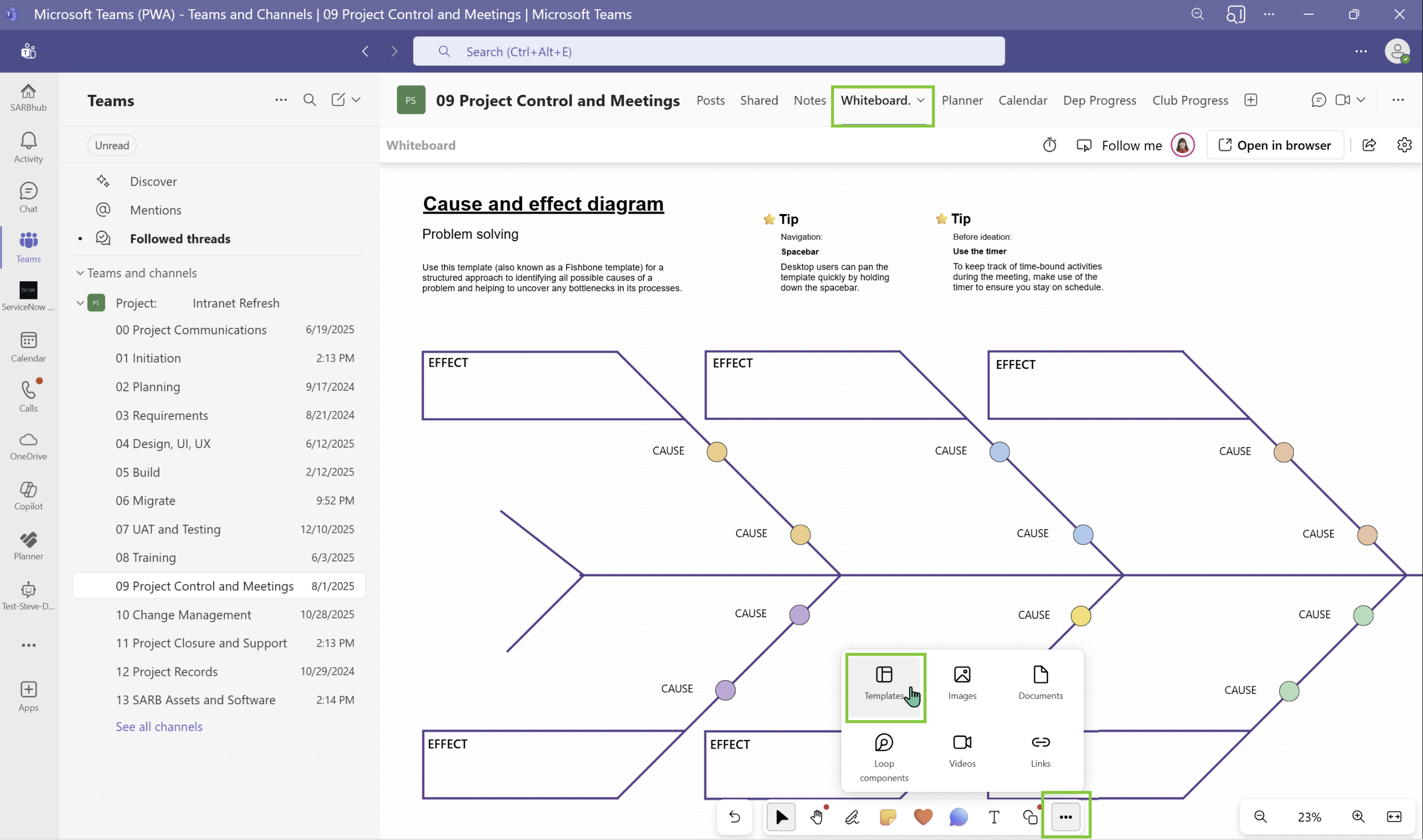
In Whiteboard there are also various templates that can be used for different objectives. Visual thinking often unlocks clarity faster than documents alone.
Add the Channel Calendar
On the Meetings Channel, add the Channel Calendar to show the filtered view of all meetings scheduled in this team. Keep in mind when booking meetings, that you can “show in personal calendar” to automatically invite all members to the meeting. You have to add and co-organizers to the Required Attendees to be able to choose the organizer when configuring the meeting options.
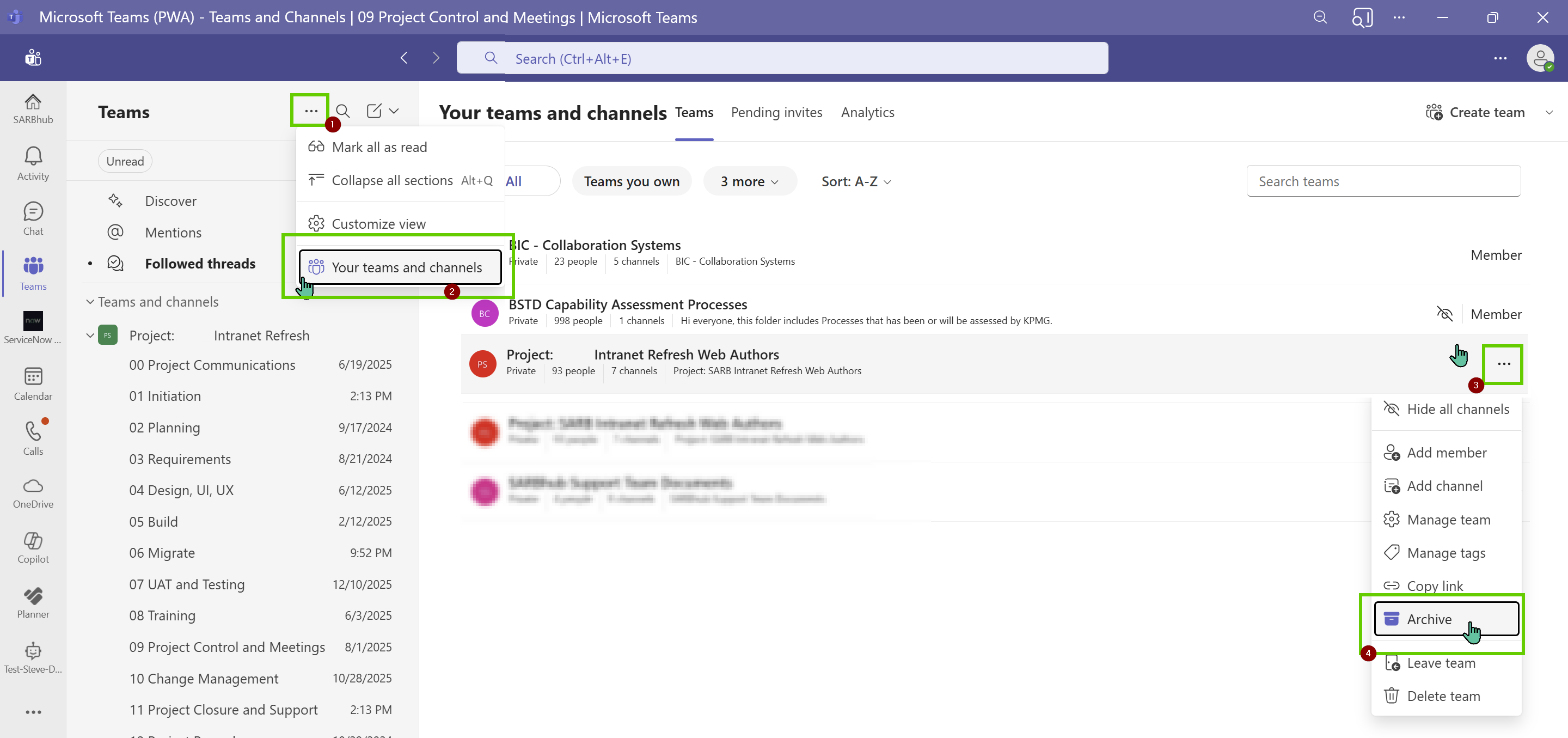
Archive the Team at the end of the project
Archiving puts the Team and its underlying SharePoint site into a read‑only state, preventing members from continuing to use the space for ongoing production activities related to the product or service. This preserves project history while clearly signalling that the project has formally closed.
In the next blogs, I’ll take this a step further by looking at using Microsoft Lists for your Issue and Risk registers, as well as creating the overarching Project Management Team (PMO Office), including how a Microsoft List can be used as a simple project status and reporting dashboard in the PMO team.
Microsoft Resources:
- Copilot Prompt Gallery
- Microsoft 365 Copilot help & learning
- Accelerate your AI journey with our Copilot Success Kit
- Microsoft 365 Copilot Hub
- Copilot Success Kit
- Flexible Copilot plans for every organization
- Restrict discovery of SharePoint sites and content
- Address oversharing in Microsoft 365 Copilot
- Oversharing Control at Enterprise Scale | Updates for Microsoft 365 Copilot in Microsoft Purview
- Explore agents pre-built for you in Microsoft Copilot Studio
- Introducing Researcher and Analyst in Microsoft 365 Copilot
- Welcome to Copilot in Word
- Get started with Copilot in Excel
- Accelerate your AI journey with our Copilot Success Kit
- Share your best prompts
- Boost Your Copilot Collaboration with Reusable Prompt Files
- New Copilot Prompt Gallery helps you discover, save, and share your favorite prompts
- Set up a Channel Agent for Microsoft Teams
- Archive or restore a team in Microsoft Teams
Other Copilot related blogs I’ve written:
- From Burnout to Balance: My Journey with Microsoft Copilot
- Prompt Like a Pro: Exploring the Purpose of the Copilot Prompt Gallery
- Microsoft 365 Copilot Help & Learning Portal
- The Prompt Gallery Playbook: Level Up Your Copilot Skills
- Beyond Chat: How Copilot Agents Are Transforming Work in 2026
- Copilot: Treat it like a conversation — adjust, refine, iterate!
- Saving Time Daily: 20 Things Copilot Can Already Do for You
- Copilot Chat vs Business vs Enterprise vs Studio: Clear, Simple, Decoded
- Oversharing in the Age of Copilot: Your Data’s Worst Enemy
- How to Use Copilot Researcher for Faster, Better Decision-Making
- Meet Copilot Analyst: Your New Data Scientist on Demand
- Your Copilot Crash Course: 10 Essential Blogs for Every Employee
- Write Smarter in Word with Copilot: Practical Prompts, Safer Content, Better Outcomes
- From Numbers to Insights: Copilot in Excel for Everyone
- Your New Presentation Partner: Discover Copilot for PowerPoint
- Master Your Inbox with AI: Copilot Tips Anyone Can Use
- Copilot & Digital Fluency Across Office: The Best of Excel, Word, Outlook & PowerPoint in One Guide
- The ‘Prompt Library’ Anti‑Pattern: Why You Should Build Decision Trees Instead
- Steal Your Lunch Break Back with Copilot
- Start a Copilot Community with Viva Engage: Share Tips, Tricks, and Prompts that Stick
- Beyond the Bot: A No‑Drama Playbook for Copilot Adoption
- Stop Re‑Prompting Copilot. Reuse What Works
“Build confidence, boost creativity, and let Copilot do the heavy lifting. Your journey from beginner to brilliant starts with one good prompt.”
Spoiler Alert!! I use Copilot to create my Blog Thumbnails and help fact check my articles / shorten / summarise paragraphs where needed. I also use Napkin.AI to create any infographics I use. Of course I can create my own images, and I ROCK at PowerPoint, but with Copilot I can do SO MUCH MORE, SO MUCH FASTER! I’ve always wanted an assistant, now I do. #WinningAtLife
Contact me:
Do you need help with your #Microsoft365 #Copilot journey? Contact me.
Please DO NOT contact me to publish blogs on your behalf, advertise on my site, endorse your product or solve a problem you have (that could have been solved by posting on an online forum). As part of the #Micosoft365 #Copilot #Community, we work really hard on content and support that we give back to you, for free – because we really do care. You are always welcome to leave (relevant) comments on my blogs / videos, and I’ll respond, as this way, others also get value from it.
Stay awesome, keep learning, help others.

 Tracy van der Schyff
Leave a Reply