In yesterday’s blog, I looked at how Microsoft Teams can become the central hub for managing your project, conversations, meetings, tasks, and decisions all in one place. Today, I want to zoom in on something every project has (but few handle well): risks and issues.
Most projects don’t fail because risks weren’t raised. They fail because risks were buried in chat, lost in meeting notes, or never tracked properly once identified.
This is where Teams, Microsoft Lists, and Copilot work beautifully together.
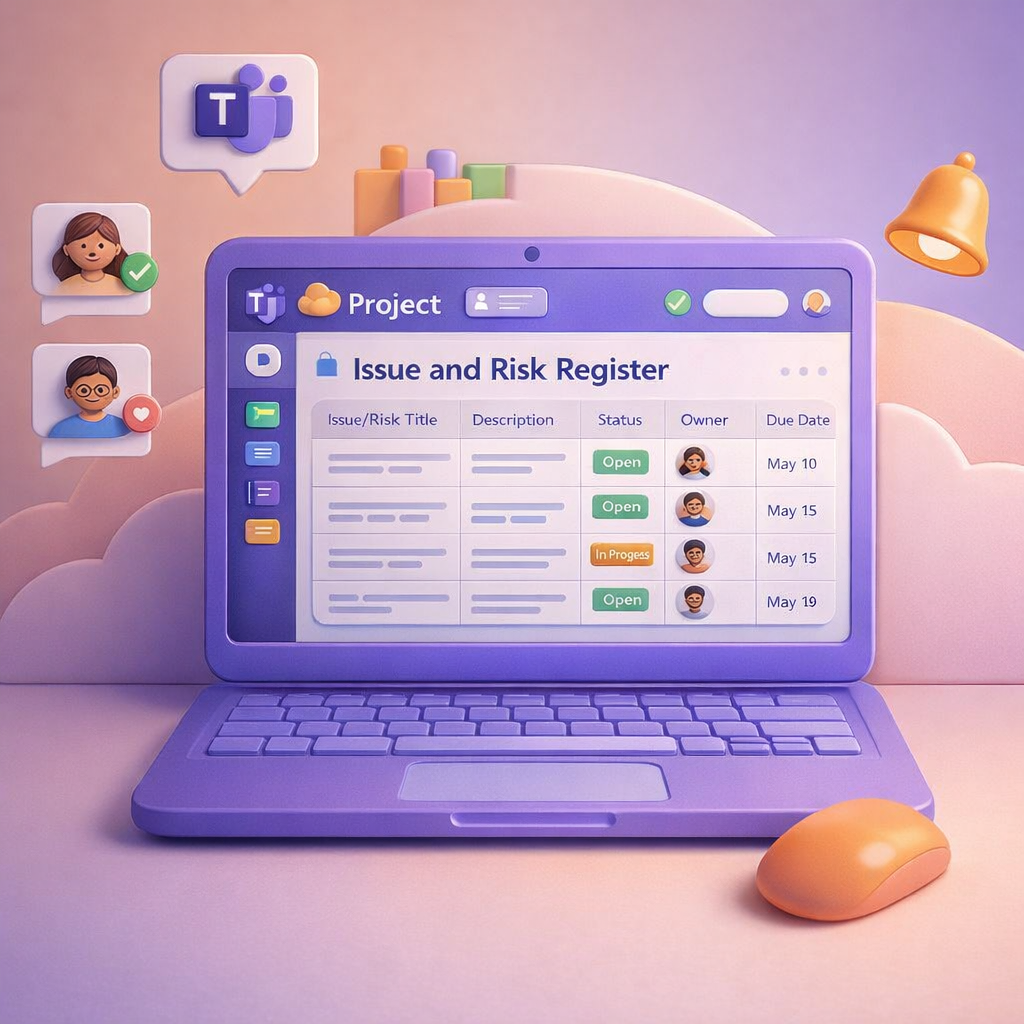
Why Risks and Issues Deserve Their Own Home
If risks and issues live:
- in emails,
- in someone’s notebook,
- or as a bullet point on a slide once a month,
If you don’t have a register — you have a hope-and-pray strategy. A good risk and issue register should be:
- Easy to update
- Visible to the project team
- Simple enough that people actually use it
You don’t need heavyweight PM software to achieve this.ing dashboard in the PMO team.
Start with a Dedicated Channel
Within your project Team, create a clear channel — for example:
05 – Risks & Issues (05 – Risks & Issues (the list can also live in the 09 Project Control and Meetings Channel)
This becomes the single place where:
- Risks are raised and reviewed
- Issues are logged and tracked
- Discussions stay visible and searchable
- Meetings and updates happen in context
Structure matters. When people know where risks belong, they’re far more likely to raise them early.
Use Microsoft Lists as Your Risk & Issue Register
Inside the channel, add a Microsoft List. This becomes your live register — simple, visible, and easy to maintain.
A good starting structure includes:
- Title
- Type (Risk or Issue)
- Description
- Impact
- Likelihood (for risks)
- Owner
- Status
- Mitigation or Resolution
- Raised Date
Nothing fancy. Just enough structure to drive clarity and accountability. Because the list lives inside Teams, it stays close to the work — not hidden in another system people forget to check.
Let Copilot Help You Maintain It (Not Replace Thinking)
This is where Copilot adds real value. Instead of manually trawling through conversations and meetings, you can ask Copilot to:
- Summarise recent discussions that relate to risks or blockers
- Identify patterns — for example, recurring delivery delays or dependency issues
- Draft risk descriptions or mitigation options based on context already in the channel
- Create a quick summary for your project status or Steerco update
Copilot doesn’t decide what’s a risk — you still do. But it saves time turning scattered signals into something structured and usable.
Meeting Recaps Feed the Register
If your risk or issue is discussed in a channel-based meeting, you already have an advantage:
- The meeting recap
- The transcript
- The decisions
- The actions
All live right there. Instead of asking, “Did we log that risk?”, you can use Copilot to help extract the outcome and update the list while the context is still fresh.
That’s how registers stay relevant, not as an admin exercise, but as part of how the team works.
Reporting Without Reinventing the Wheel
Because your risks and issues are already in a List, reporting becomes simple:
- Filter by status or owner
- Group by risk vs issue
- Use Copilot to summarise what’s changed since last week
- Pull the list into a Steerco channel or dashboard if needed
No more rebuilding the same slide every month from scratch. Start using the “live” data for the reporting.
The Bigger Picture
Good project control isn’t about more documents — it’s about better visibility. When your risks and issues:
- Live inside Teams
- Are structured just enough
- Are supported by Copilot summaries
- And are discussed openly in context
They stop being scary surprises and start becoming manageable conversations. And that’s where good project teams separate themselves from the rest.
Microsoft Resources:
- Copilot Prompt Gallery
- Microsoft 365 Copilot help & learning
- Accelerate your AI journey with our Copilot Success Kit
- Microsoft 365 Copilot Hub
- Copilot Success Kit
- Flexible Copilot plans for every organization
- Restrict discovery of SharePoint sites and content
- Address oversharing in Microsoft 365 Copilot
- Oversharing Control at Enterprise Scale | Updates for Microsoft 365 Copilot in Microsoft Purview
- Explore agents pre-built for you in Microsoft Copilot Studio
- Introducing Researcher and Analyst in Microsoft 365 Copilot
- Welcome to Copilot in Word
- Get started with Copilot in Excel
- Accelerate your AI journey with our Copilot Success Kit
- Share your best prompts
- Boost Your Copilot Collaboration with Reusable Prompt Files
- New Copilot Prompt Gallery helps you discover, save, and share your favorite prompts
- Set up a Channel Agent for Microsoft Teams
- Archive or restore a team in Microsoft Teams
Other Copilot related blogs I’ve written:
- From Burnout to Balance: My Journey with Microsoft Copilot
- Prompt Like a Pro: Exploring the Purpose of the Copilot Prompt Gallery
- Microsoft 365 Copilot Help & Learning Portal
- The Prompt Gallery Playbook: Level Up Your Copilot Skills
- Beyond Chat: How Copilot Agents Are Transforming Work in 2026
- Copilot: Treat it like a conversation — adjust, refine, iterate!
- Saving Time Daily: 20 Things Copilot Can Already Do for You
- Copilot Chat vs Business vs Enterprise vs Studio: Clear, Simple, Decoded
- Oversharing in the Age of Copilot: Your Data’s Worst Enemy
- How to Use Copilot Researcher for Faster, Better Decision-Making
- Meet Copilot Analyst: Your New Data Scientist on Demand
- Your Copilot Crash Course: 10 Essential Blogs for Every Employee
- Write Smarter in Word with Copilot: Practical Prompts, Safer Content, Better Outcomes
- From Numbers to Insights: Copilot in Excel for Everyone
- Your New Presentation Partner: Discover Copilot for PowerPoint
- Master Your Inbox with AI: Copilot Tips Anyone Can Use
- Copilot & Digital Fluency Across Office: The Best of Excel, Word, Outlook & PowerPoint in One Guide
- The ‘Prompt Library’ Anti‑Pattern: Why You Should Build Decision Trees Instead
- Steal Your Lunch Break Back with Copilot
- Start a Copilot Community with Viva Engage: Share Tips, Tricks, and Prompts that Stick
- Beyond the Bot: A No‑Drama Playbook for Copilot Adoption
- Stop Re‑Prompting Copilot. Reuse What Works
- Using Microsoft Teams + Copilot for Project Management
“Build confidence, boost creativity, and let Copilot do the heavy lifting. Your journey from beginner to brilliant starts with one good prompt.”
Spoiler Alert!! I use Copilot to create my Blog Thumbnails and help fact check my articles / shorten / summarise paragraphs where needed. I also use Napkin.AI to create any infographics I use. Of course I can create my own images, and I ROCK at PowerPoint, but with Copilot I can do SO MUCH MORE, SO MUCH FASTER! I’ve always wanted an assistant, now I do. #WinningAtLife
Contact me:
Do you need help with your #Microsoft365 #Copilot journey? Contact me.
Please DO NOT contact me to publish blogs on your behalf, advertise on my site, endorse your product or solve a problem you have (that could have been solved by posting on an online forum). As part of the #Micosoft365 #Copilot #Community, we work really hard on content and support that we give back to you, for free – because we really do care. You are always welcome to leave (relevant) comments on my blogs / videos, and I’ll respond, as this way, others also get value from it.
Stay awesome, keep learning, help others.

 Tracy van der Schyff
Leave a Reply