Most project teams already have a Risk & Issue Register. It exists. It’s maintained (mostly). It gets updated just before steering meetings. And yet, when things go wrong on a project, the risks were often already there — we just didn’t see them clearly enough, early enough.
The challenge isn’t capturing risks and issues. The challenge is making sense of them. That’s where Microsoft Copilot can help.
This is where Teams, Microsoft Lists, and Copilot work beautifully together.

Author’s note: With over 1 000 blogs published, there’s simply not enough time (or wine 🍷) to retroactively update older posts every time features change. I always try to clearly state which version I’m using, so you can easily research what may be new or different from the images or videos I’ve shared. All Copilot‑related blogs I write are based on the Microsoft 365 Copilot for Business add‑on license that I currently use.
In my previous blog, I shared how you can use a Microsoft List as a practical and effective Risk & Issue Register for project management. In this article, I want to take that a step further and show how Copilot can help you analyse that data, spot patterns, and turn information into insight. Turn Chaos into Clarity: Build a Simple Risk & Issue Register with Teams + Copilot
This isn’t about Copilot doing project management for you. It’s about using Copilot to take the reporting load off your shoulders, so you can focus on what really matters — leading your team, facilitating conversations, removing blockers, and showing empathy when it’s needed most.
Copilot helps with the paperwork and analysis, so you can spend more time being the awesome Project Manager you already are.
And yes, I intentionally used a grey‑beard Project Manager in the graphic — a small nod to the brilliant, experienced Project Managers I admire and am very fond of 😊. You know who you are!
Risk registers are data‑rich … insight‑poor
A Risk & Issue Register is usually full of useful information:
- Descriptions
- Owners
- Scores
- Due dates
- Mitigations
- Categories
But it also comes with a problem:
- It’s a list
- It grows quickly
- And it takes time to analyse properly
Before meetings, project managers often find themselves:
- Manually sorting by score
- Filtering overdue items
- Copy‑pasting into status reports
- Trying to spot patterns under time pressure
This is exactly the kind of work Copilot is good at — reading, grouping, summarising, and highlighting what matters.
Copilot doesn’t replace your register — it helps you think with it
Copilot doesn’t magically “fix” risk management. It doesn’t replace accountability. And it definitely doesn’t make decisions for you.
What it does is act like a project analyst sitting next to you, helping you ask better questions of the data you already have. Think of Copilot as: Someone who can quickly read the full register, notice themes, and summarise what deserves attention — without you doing all the manual work.
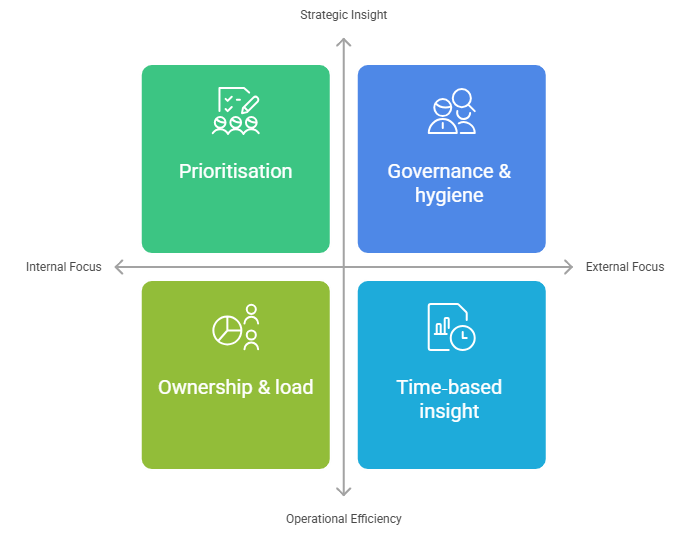
The kinds of questions Copilot can help you answer
Once your Risk & Issue Register is stored in a structured format (for example, a Microsoft List in a Teams project channel), Copilot can help you analyse it far beyond “scroll and hope”.
Prioritisation
Instead of scanning rows:
- “What are our top 10 open risks by exposure score?”
- “Which issues pose the biggest threat to timeline or delivery?”
Time‑based insight
- “Which risks are overdue for review or mitigation?”
- “What actions are due in the next two weeks?”
Patterns & themes
- “Are we seeing repeated risks in the same category?”
- “Which risk types are increasing rather than decreasing?”
Ownership & load
- “Which owners are carrying the most high‑risk items?”
- “Where might we need support or escalation?”
Governance & hygiene
- “Which risks have no mitigation defined?”
- “Which items haven’t been updated recently?”
These are questions experienced PMs already ask — Copilot just helps answer them faster and more consistently.
Where Copilot fits into your project rhythm
Copilot works particularly well at natural pause points in project delivery:
- Before weekly or monthly risk reviews
- While preparing steering committee updates
- When drafting status reports
- Ahead of sponsor check‑ins
- During handovers or audits
Instead of spending your time preparing information, you spend it having better conversations about risk.
What Copilot doesn’t do (and why that matters)
It’s important to be clear:
- Copilot won’t fix missing or poor‑quality data
- It won’t magically understand risks that were never logged
- It won’t override bad scoring or outdated information
If your register isn’t looked after, Copilot will simply help you see that more clearly. In other words: Copilot rewards good risk discipline. It doesn’t replace it.
Why this is a practical Copilot quick win
Risk & Issue Registers:
- Already exist
- Aren’t controversial
- Are used across industries
- Are familiar to both business and IT
That makes them a great starting point for Copilot:
- No new process to invent
- No shiny experiment to defend
- Immediate, visible value
If Copilot helps you understand risk earlier, it helps you manage risk better. And that’s where real project value shows up.

Example Copilot prompts
➡️ Analysis & Insight
- “Summarise the key risk themes in our Risk & Issue Register.”
- “Show the top 10 open risks by exposure score and group them by category.”
- “Which risks have worsened since the last review?”
➡️ Time & Action Focus
- “List all overdue risks and issues with owners and due dates.”
- “Which mitigation actions are due in the next 14 days?”
- “Highlight risks that haven’t been reviewed in over 30 days.”
➡️ Reporting
- “Create a one‑page executive summary of project risks for stakeholders.”
- “Draft steering committee talking points based on current risk status.”
- “Summarise risks requiring sponsor decisions.”
➡️ Governance
- “Identify risks with missing or vague mitigation plans.”
- “Which issues are blocking downstream milestones?”
Closing thought
Your Risk & Issue Register already knows where your project hurts. Copilot doesn’t invent new risks — it helps you listen more carefully to the ones you already have.
However, if you’re reading this and thinking, “This sounds great — but why doesn’t it work like this in my environment?”, you’re not alone.
Copilot’s ability to analyse a Risk & Issue Register depends very much on where it’s used, how it’s licensed, and what it’s allowed to access.
Next up
In the next blog, I’ll unpack what Copilot chat can do, what changes when you use Copilot for Business or Enterprise, and when you need Copilot Studio and custom agents to work directly with your Risk & Issue Register. I’ll also explain why licensing matters, what’s realistically possible at each level, and how to set the right expectations before you try to scale this across your project teams..
I’ll also create follow-up, more detailed blogs with custom videos on how to create the Project Management Team & Channels plus preferred configuration and settings and then how to create that Microsoft List for your Risk & Issue Register (and include some cool rules you setup to get notified on certain statuses).
Microsoft Resources:
- Copilot Prompt Gallery
- Microsoft 365 Copilot help & learning
- Accelerate your AI journey with our Copilot Success Kit
- Microsoft 365 Copilot Hub
- Copilot Success Kit
- Flexible Copilot plans for every organization
- Restrict discovery of SharePoint sites and content
- Address oversharing in Microsoft 365 Copilot
- Oversharing Control at Enterprise Scale | Updates for Microsoft 365 Copilot in Microsoft Purview
- Explore agents pre-built for you in Microsoft Copilot Studio
- Introducing Researcher and Analyst in Microsoft 365 Copilot
- Welcome to Copilot in Word
- Get started with Copilot in Excel
- Accelerate your AI journey with our Copilot Success Kit
- Share your best prompts
- Boost Your Copilot Collaboration with Reusable Prompt Files
- New Copilot Prompt Gallery helps you discover, save, and share your favorite prompts
- Set up a Channel Agent for Microsoft Teams
- Archive or restore a team in Microsoft Teams
- Microsoft Lists Adoption Center
- Microsoft Lists help & learning
- Microsoft Lists adoption resources and videos
Other Copilot related blogs I’ve written:
Copilot Adoption, Tech Readiness & Licensing:
- From Burnout to Balance: My Journey with Microsoft Copilot
- Microsoft 365 Copilot Help & Learning Portal
- The Prompt Gallery Playbook: Level Up Your Copilot Skills
- Beyond Chat: How Copilot Agents Are Transforming Work in 2026
- Copilot Chat vs Business vs Enterprise vs Studio: Clear, Simple, Decoded
- Oversharing in the Age of Copilot: Your Data’s Worst Enemy
- Start a Copilot Community with Viva Engage: Share Tips, Tricks, and Prompts that Stick
- Beyond the Bot: A No‑Drama Playbook for Copilot Adoption
Copilot Prompts and Learning:
- Prompt Like a Pro: Exploring the Purpose of the Copilot Prompt Gallery
- Copilot: Treat it like a conversation — adjust, refine, iterate!
- Saving Time Daily: 20 Things Copilot Can Already Do for You
- How to Use Copilot Researcher for Faster, Better Decision-Making
- Meet Copilot Analyst: Your New Data Scientist on Demand
- Your Copilot Crash Course: 10 Essential Blogs for Every Employee
- Write Smarter in Word with Copilot: Practical Prompts, Safer Content, Better Outcomes
- From Numbers to Insights: Copilot in Excel for Everyone
- Your New Presentation Partner: Discover Copilot for PowerPoint
- Master Your Inbox with AI: Copilot Tips Anyone Can Use
- Copilot & Digital Fluency Across Office: The Best of Excel, Word, Outlook & PowerPoint in One Guide
- The ‘Prompt Library’ Anti‑Pattern: Why You Should Build Decision Trees Instead
- Steal Your Lunch Break Back with Copilot
- Stop Re‑Prompting Copilot. Reuse What Works
Project Management:
- Using Microsoft Teams + Copilot for Project Management
- Turn Chaos into Clarity: Build a Simple Risk & Issue Register with Teams + Copilot
“Build confidence, boost creativity, and let Copilot do the heavy lifting. Your journey from beginner to brilliant starts with one good prompt. SuperZero to SuperHero in no time!”
Spoiler Alert!! I use Copilot to create my Blog Thumbnails and help fact check my articles / shorten / summarise paragraphs where needed. I also use Napkin.AI to create any infographics I use. Of course I can create my own images, and I ROCK at PowerPoint, but with Copilot I can do SO MUCH MORE, SO MUCH FASTER! I’ve always wanted an assistant, now I do. #WinningAtLife
Contact me:
Do you need help with your #Microsoft365 #Copilot journey? Contact me.
Please DO NOT contact me to publish blogs on your behalf, advertise on my site, endorse your product or solve a problem you have (that could have been solved by posting on an online forum). As part of the #Micosoft365 #Copilot #Community, we work really hard on content and support that we give back to you, for free – because we really do care. You are always welcome to leave (relevant) comments on my blogs / videos, and I’ll respond, as this way, others also get value from it.
Stay awesome, keep learning, help others.

 Tracy van der Schyff
Leave a Reply